Windows - Using the Installer
Supported Windows Versions
OMNeT++ supports 64-bit versions of Windows.
Pre-installation Steps
Download omnetpp-6.4-win64.exe from https://omnetpp.org.
Note
The MinGW GCC and Clang compilers are bundled with OMNeT++. You do not need to install any additional compiler to work with OMNeT++. These comilers use the industry standard Itanium C++ ABI (http://itanium-cxx-abi.github.io/cxx-abi/. If you would like to use Microsoft ABI compliant compilers from MS Visual Studio or MS Build Tools, you should install MSVC v142 - VS 2019 C++ x64/x86 build tools (from Build Tools 2019 or Visual Studio 2019) along with the Microsoft Windows 10 SDK and the C++ Clang tools for Windows (9.0.0 - x64/x86) component, before installing OMNeT++.
Installing OMNeT++
Find the downloaded installation file using Windows Explorer, and double-click the file. This will start the installation process.
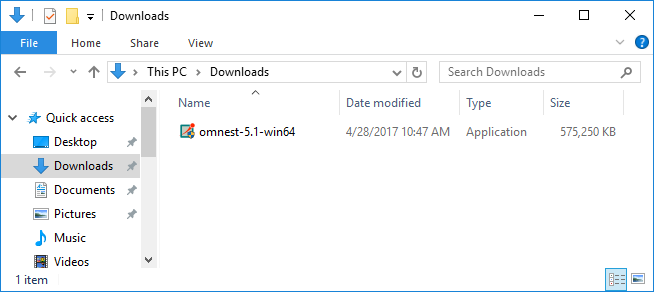
Starting the installer
To start the installation, accept the Licensing agreements:
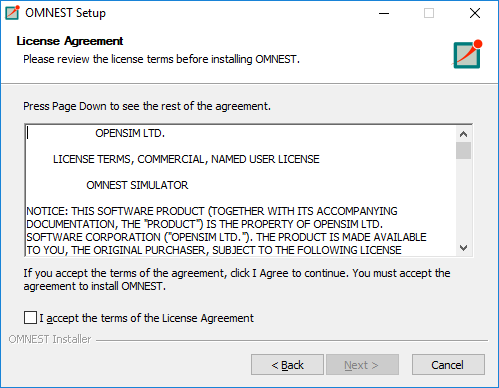
License agreement
Select an installation target directory. Please make sure that the installation path does not contain spaces.
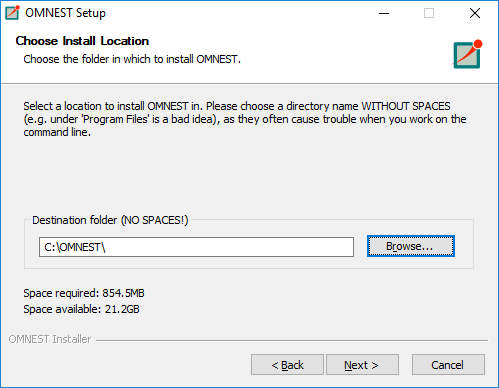
Selecting the installation directory
On the next page you have to specify which compiler you intend to use with OMNeT++. This can be the bundled MinGW GCC compiler (recommended), or the Clang compiler from Microsoft Visual Studio/MS Build Tools 2019. If you do not install any pre-built binary packages (none), you have to compile OMNeT++ manually after the installation has finished.
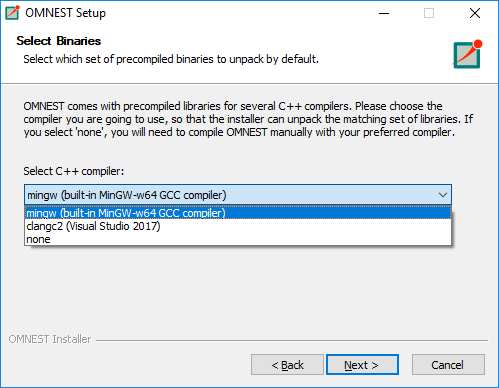
Compiler selection
On the last page, you can optionally create program launcher icons for your desktop, too.
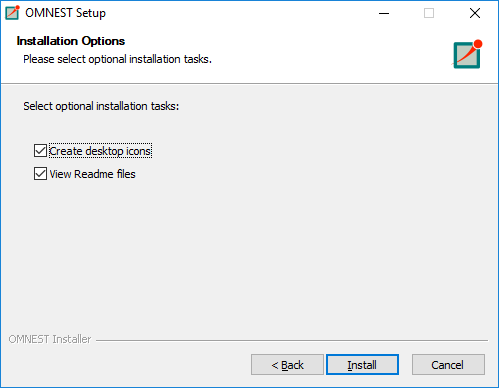
Installation options
After this step the installation process starts, and all files required by OMNeT++ will be copied to the installation folder.
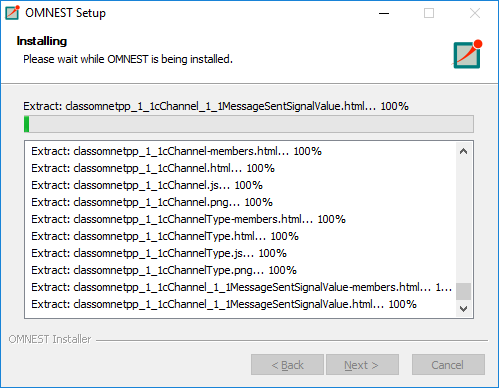
Installation options
Finally, a new Start Menu folder is created (along with desktop shortcuts). You can start the OMNeT++ Shell or the OMNeT++ IDE by clicking on the icons.
Tip
If you want to work from the command line, use the provided OMNeT++ Shell. This shell sets all environment variables and the path necessary to run OMNeT++ simulations.
Using the IDE
Once the installation has finished, you can start using OMNeT++ by launching the IDE. The IDE can be launched with the
corresponding Start Menu or desktop shortcut, or by typing omnetpp at the OMNeT++ Shell prompt.
In the IDE, each simulation example is a separate project. To build an example, open its project using the context menu (right-click, Open Project), and click the Run button on the toolbar. To rebuild the example, first make sure that the correct configuration is selected (context menu, Build Configurations > Set Active), then choose Clean Project and Build Project from the context menu.
The IDE is documented in detail in the User Guide.
Using OMNeT++ with the MinGW GCC Compiler
The bundled MinGW GCC compiler is preconfigured for OMNeT++. Note that only the bundled version of MinGW has been tested and is supported with OMNeT++.
If you have installed the pre-compiled binary package for the MinGW compiler, make sure that the <installdir>/bin
and <installdir>/lib directories contain the correct executables and libraries. You should see libopp*.dll files
in the <installdir>/bin directory and similarly named *.a files in <installdir>/lib. If you do not see them,
check the “Switching Compilers” or the “Recompiling OMNeT++” section before proceeding.
To test the installation, try to run models from the <installdir>/samples directory.
Compiling Simulations on the Command Line
To build simulations from the command line, the following directories have to be included in the path:
<installdir>\bin, <installdir>\tools\win64\usr\bin and <installdir>\tools\win64\mingw64\bin.
OMNeT++ provides a OMNeT++ MinGW Shell window (mingwenv.cmd), which sets the path and environment variables.
Before compiling a model, you must generate a Makefile for it. Change into the model directory and execute:
$ opp_makemake -f --deep
This command will generate a Makefile that can compile all your .cc files in the model directory.
$ make
will compile and build your project.
Tip
Be sure to check the Manual for all the options and features of opp_makemake.
Recompiling OMNeT++
Open the OMNeT++ MinGW Shell window and type:
$ ./configure
This command will detect all required software on your machine, and configure your build environment. The configuration
process creates a file called Makefile.inc in your installation root. This file will be included in all of your
makefiles, and contains all variables, paths and settings for the build process.
If you do not have binary files in your bin directory (no pre-compiled binaries were installed), you should compile
OMNeT++ now manually by typing:
$ make
Tip
The above command creates both debug and release versions of the libraries. If you want to create only one type, use
the make MODE=debug or make MODE=release commands.
Tip
If you have a dual-core machine, you can speed up the compilation by adding the -j2 option to the make
command line, which enables parallel build support.
Using OMNeT++ with Microsoft Visual Studio Clang compiler
OMNeT++ comes with pre-built binaries for the Clang compiler. If you have installed the pre-compiled binary package
for the Clang compiler, make sure that the <installdir>/bin and <installdir>/lib directories contain the correct
executables and libraries. You should see opp*.dll files in the <installdir>/bin directory and opp*.lib
files in the <installdir>/lib directory. If you do not see them, check the “Switching Compilers” or the “Recompiling
OMNeT++” section before proceeding.
To test the installation try to run models from the <installdir>/samples directory.
Note
Be sure to modify the path to point to your Visual Studio installation (VS_INSTALL_DIR) and Clang compiler version
(ClangToolsInstallDir) in the <installdir>\vcenv.cmd file. By default, the file is using the MS Build Tools 2019
installation on your C: drive. If you have installed Visual Stuido instead of the Build Tools package, you must
modify this file.
Note
For now, the OMNeT++ IDE cannot be used for debugging Visual C++ binaries. This is a limitation of the Eclipse CDT component that OMNeT++ build on. We recommend that you use the Visual Studio IDE for debugging.
Compiling Simulations on the Command Line (MS ABI)
To build simulations from the command line, the following directories have to be included in the path:
<installdir>\bin, <installdir>\tools\win64\usr\bin, <installdir>\tools\win64\visualc\bin plus the
directories required by Visual Studio Clang itself. To include the required Visual C++ directories, VC provides a
batch file called vcvars64.bat in its bin directory.
OMNeT++ provides a OMNeT++ Visual C++ Shell window (vcenv.cmd), which sets the path and environment
variables and properly class also the vcvars64.bat file.
Note
You may need to adjust your Visual Studio/MS Build Tools and Clang installation directory in the vcenv.cmd file.
Before compiling a model, you must generate a Makefile for it. Change into the model directory and execute:
> opp_makemake -f --deep
This command will generate a Makefile file that can compile all your .cc files in the model directory.
> make
will build your project.
Compiling Simulations from the IDE
Before compiling simulations from the IDE, make sure that the correct build configuration (debug or release) is
selected then choose Build in the Project menu.
Recompiling OMNeT++
Open the OMNeT++ Visual C++ Shell window (vcenv.cmd). Make sure that USE_MS_ABI is set to yes (and
uncommented) in the configure.user file and configure the installation with ./configure.
If you do not have binary files in your bin directory (no pre-compiled binaries were installed), you should compile
OMNeT++ now manually by typing:
> make
Switching Compilers
If you want to switch compilers after you have installed OMNeT++, we recommend uninstalling the software and reinstalling it with the selected new compiler.
It is also possible to manually change the compiler used:
First you have to delete all executable files generated by that compiler.
Open the OMNeT++ MinGW Shell window (mingwenv.cmd) and clean OMNeT++ by executing the following command in
<installdir>
$ make cleanall
Pre-built binaries are stored in the <installdir>/store directory. You must extract their content in the root
OMNeT++ directory. Execute:
$ 7za x store/mingw-bin.7z
or
$ 7za x store/clangc2-bin.7z
depending on your compiler. After extracting the executables you will be able to run the sample simulations immediately.
Finally, you may need to modify the shortcut that is used to start the IDE. Open the shortcut properties and change the command to “mingw.env ide” or “vcenv.cmd ide” depending on the compiler you intend to use.
Note
Be sure to modify the path to your Visual Studio installation (VS_INSTALL_DIR) and Clang compiler version
(ClangToolsInstallDir) in the <installdir>\vcenv.cmd file if you are switching between different versions of
Visual Studio or MS Build Tools.
Additional Packages
Note that Doxygen and GraphViz are already included in the OMNeT++ package, and will be used by the IDE automatically.
MPI
MPI is only needed if you would like to run parallel simulations.
There are several MPI implementations for Windows, and OMNeT++ does not mandate any specific one. We recommend DeinoMPI, which can be downloaded from http://mpi.deino.net.
DeinoMPI ships with binaries compiled with MSVC. After installing DeinoMPI, adjust the MPI_DIR setting in
configure.user, and recompile OMNeT++ with the version of MSVC that matches the DeinoMPI binaries.
Note
In general, if you would like to run parallel simulations, we recommend that you use Linux, macOS, or another unix-like platform.
Akaroa
Akaroa 2.6.7, which is the latest version at the time of writing, does not support Windows. You may try to port it using the porting guide from the Akaroa distribution.
SystemC
Note
SystemC integration is not available on Windows, because the bundled SystemC reference implementation is not supported with MinGW or Clang.