Result Recording and Analysis
Result Recording
OMNeT++ offers built-in support for recording simulation results through output vectors and output scalars. Output vectors are time series data recorded from simple modules or channels. They can be used to record end-to-end delays, round-trip times of packets, queue lengths, queueing times, module state, link utilization, packet drops, etc. - anything that provides a comprehensive understanding of the model’s behavior during the simulation.
Output scalars are summary results computed during the simulation and written out upon completion. A scalar result may be a (integer or real) number or a statistical summary comprised of several fields, such as count, mean, standard deviation, sum, minimum, maximum, etc., and optionally, histogram data.
Results can be collected and recorded in two ways:
Based on the signal mechanism, using declared statistics;
Directly from C++ code, using the simulation library
The second method has traditionally been used for result recording. The first method, based on signals and declared statistics, was introduced in OMNeT++ 4.1 and is preferable because it allows you to always record the results in the desired form without requiring extensive instrumentation or constant adjustments to the simulation model.
Using Signals and Declared Statistics
This approach combines the signal mechanism (see Signals) and NED properties (see Metadata Annotations (Properties)) to decouple the generation and recording of results, providing greater flexibility in deciding what to record and in which form. The details of the solution are described in section Signal-Based Statistics Recording in detail; here we provide a brief overview.
Statistics are declared in the NED files using the @statistic property,
and modules emit values using the signal mechanism. The simulation framework
records data by adding special result file writer listeners to the signals.
By choosing which listeners to add, the user can control what gets recorded
in the result files and what computations to apply before recording. The aforementioned
section Signal-Based Statistics Recording also explains how to instrument
simple modules and channels for signals-based result recording.
The signals approach allows for the calculation of aggregate statistics (such as the total number of packet drops in the network) and for implementing a warm-up period without requiring support from module code. It also allows you to write dedicated statistics collection modules for the simulation without modifying existing modules.
The same configuration options used to control result recording with cOutVector and recordScalar() also apply when using the signals approach, and extra configuration options are available to provide additional functionality.
Direct Result Recording
With this approach, scalar and statistical results are collected as class variables within modules and then recorded during the finalization phase using recordScalar() calls. Vectors are recorded using cOutVector objects. Use cStdDev to record summary statistics such as mean, standard deviation, minimum/maximum, and histogram-like classes (cHistogram, cPSquare, cKSplit) to record the distribution. These classes are described in sections Collecting Summary Statistics and Histograms and Recording Simulation Results. Recording of individual vectors, scalars, and statistics can be enabled or disabled via the configuration (ini) file, where recording intervals for vectors can also be set.
The drawback of recording results directly from modules is that result recording is hardcoded in the modules, and even simple requirement changes (e.g., recording the average delay instead of each delay value, or vice versa) require either code modification or an excessive amount of result collection code within the modules.
Configuring Result Collection
Result File Names
Simulation results are recorded into output scalar files that also hold
statistics results, and output vector files. The usual file extension
for scalar files is .sca, and for vector files .vec.
Every simulation run generates a single scalar file and a vector file. The file
names can be controlled with the output-vector-file and
output-scalar-file options. These options rarely need to be used
because the default values are usually sufficient. The defaults are:
output-vector-file = "${resultdir}/${configname}-${runnumber}.vec"
output-scalar-file = "${resultdir}/${configname}-${runnumber}.sca"
Here, ${resultdir} is the value of the result-dir
configuration option which defaults to results/, and
${configname} and ${runnumber} are the names of the
configuration name in the ini file (e.g., [Config PureAloha]), and the run
number, respectively. Thus, the above defaults generate file names such as
results/PureAloha-0.vec, results/PureAloha-1.vec, and so on.
Global Result File Control
The creation of result files can be controlled with global switches that determine whether vector or scalar files are written at all:
record-vector-results: main switch for writing a vector filerecord-scalar-results: main switch for writing a scalar file
To completely disable vector recording, use record-vector-results = false.
It is preferable to **.vector-recording = false, as the latter may still
create vector files containing only metadata. Similarly,
record-scalar-results = false should be preferred over
**.scalar-recording = false.
To disable all result recording, use the following three lines:
**.statistic-recording = false
record-scalar-results = false
record-vector-results = false
The first line is not strictly necessary. However, it may improve runtime performance because it causes result recorders not to be added instead of adding and then disabling them.
Enabling/Disabling Result Items
Individual result items can be controlled with per-object options that can be
configured individually for each @statistic and result item:
statistic-recording: per-object option that enables or disables the recording of all items from a@statistic.vector-recording: per-object option that controls the recording of output vectors.scalar-recording: per-object option that controls the recording of non-vector items: scalars, statistic summaries and histograms.bin-recording: per-object option that controls the recording of the bins of histograms.
The per-object options have similar syntaxes:
<module-path>.<statistic-name>.
statistic-recording= true/false<module-path>.<scalar-name>.
scalar-recording= true/false<module-path>.<vector-name>.
vector-recording= true/false<module-path>.<histogram-name>.
bin-recording= true/false
For example, recording from the following statistic:
@statistic[queueLength](record=max,timeavg,vector);
can be disabled with this ini file line:
**.queueLength.statistic-recording = false
When a scalar, vector, or histogram is recorded using a @statistic, its
name is derived from the statistic name by appending the recording mode after a
semicolon. For example, the above statistic will generate the scalars named
queueLength:max and queueLength:timeavg, and the vector named
queueLength:vector. Their recording can be individually disabled with the
following lines:
**.queueLength:max.scalar-recording = false
**.queueLength:timeavg.scalar-recording = false
**.queueLength:vector.vector-recording = false
The statistic, scalar, or vector name part in the key may also contain
wildcards. This can be used, for example, to handle result items with similar
names together or, by using * as the name, for filtering by module or to
disable all recording. The following example turns off recording of all scalar
results except those called latency and those produced by modules named
tcp:
**.tcp.*.scalar-recording = true
**.latency.scalar-recording = true
**.scalar-recording = false
Selecting Recording Modes for Signal-Based Statistics
Signal-based statistics recording has been designed so that it can be easily configured to record a “default minimal” set of results, a “detailed” set of results, and a custom set of results (by modifying the previous ones or defining from scratch).
Recording can be tuned with the result-recording-modes per-object
configuration option. The “object” here is the statistic, which is identified by
the full path (hierarchical name) of the module or connection channel object in
question, plus the name of the statistic (which is the “index” of
@statistic property, i.e., the name in the square brackets). Thus,
configuration keys have the syntax
<module-path>.<statistic-name>.result-recording-modes=.
The result-recording-modes option accepts one or more items as a
value, separated by a comma. An item may be a result recording mode and two
words with a special meaning: default and all.
A result recording mode refers to any item that may occur in the
recordkey of the@statisticproperty; for example,count,sum,mean,vector((count-1)/2).defaultstands for the set of non-optional items from the@statisticproperty’srecordlist, i.e., those without question marks.allmeans all items from the@statisticproperty’srecordlist, including the ones with question marks.
The default value is default.
A lone “-” as the option value disables all recording modes.
Recording mode items in the list may be prefixed with “+” or
“-” to add/remove them from the set of result recording modes. The
initial set of result recording modes is default; if the first item
is prefixed with “+” or “-”, then that and all subsequent items are
understood as modifying the set; if the first item does not start with
“+” or “-”, then it replaces the set, and further items are understood
as modifying the set.
This may sound more complicated than it is, and an example will make it clear. Suppose we are configuring the following statistic:
@statistic[foo](record=count,mean,max?,vector?);
With the following ini file lines (see results in comments):
**.result-recording-modes = default  # --> count, mean
**.result-recording-modes = all      # --> count, mean, max, vector
**.result-recording-modes = -        # --> none
**.result-recording-modes = mean     # --> only mean (disables 'default')
**.result-recording-modes = default,-vector,+histogram # --> count,mean,histogram
**.result-recording-modes = -vector,+histogram         # --> same as the previous
**.result-recording-modes = all,-vector,+histogram  # --> count,mean,max,histogram
Here is another example that shows how to write a more specific option key. The
following line applies to queueLength statistics of fifo[] submodule
vectors anywhere in the network:
**.fifo[*].queueLength.result-recording-modes = +vector # default plus vector
In the result file, the recorded scalars will be suffixed with the recording
mode; for example, the mean of queueingTime will be recorded as
queueingTime:mean.
Warm-up Period
The warmup-period option specifies the length of the initial warm-up
period. When set, results belonging to the first \(x\) seconds of the simulation
will not be recorded into output vectors and will not be counted in the
calculation of output scalars. This option is useful for steady-state
simulations. The default is 0s (no warm-up period).
Example:
warmup-period = 20s
Refining Warm-up Period Handling
Warm-up period handling works by inserting a special filter, a warm-up period filter, into the filter/recorder chain if a warm-up period is requested. This filter acts like a timed switch: it discards values during the specified warm-up period and allows them to pass through afterwards.
OMNeT++ allows you to disable the automatic adding of warm-up filters by
specifying autoWarmupFilter=false in the @statistic as an attribute
and manually placing such filters (warmup) instead.
Why is this necessary? By default, the filter is inserted at the front of the
filter/recorder chain of every statistic. However, the front is not always the
correct place for the warm-up period filter. Consider, for example, computing
the number of packets in a (compound) queue as the difference between the number
of arrivals and departures from the queue. This can be achieved using
@statistic as follows:
@signal[pkIn](type=cPacket);
@signal[pkOut](type=cPacket);
@statistic[queueLen](source=count(pkIn)-count(pkOut);record=vector);
When a warm-up period is configured, the necessary warm-up period filters are
inserted right before the count filters. This can be expressed as the
following expression for the statistic’s source attribute:
count(warmup(pkIn)) - count(warmup(pkOut))
which is apparently incorrect because the count filters only start counting when the warm-up period is over. Thus, the measured queue length will start from zero when the warm-up period is over, even though the queue might not be empty! In fact, if the first event after the warm-up period is a departure, the measured queue length will even go negative.
The correct solution would be to put the warmup filter at the end like so:
warmup(count(pkIn)-count(pkOut))
Thus, the correct form of the queue length statistic is the following:
@statistic[queueLen](source=warmup(count(pkIn)-count(pkOut));
                     autoWarmupFilter=false;
                     record=vector);
Manual Result Recording
Results recorded via signal-based statistics automatically obey the warm-up period setting, but modules that compute and record scalar results manually (via recordScalar()) need to be modified so that they take the warm-up period into account.
Note
When configuring a warm-up period, make sure that modules that compute and record scalar results manually via recordScalar() actually obey the warm-up period in the C++ code.
The warm-up period is available via the getWarmupPeriod() method of the simulation manager object, so the C++ code that updates the corresponding state variables needs to be surrounded with an if statement.
Old:
dropCount++;
New:
if (simTime() >= getSimulation()->getWarmupPeriod())
    dropCount++;
Output Vectors Recording Intervals
The size of output vector files can easily reach several gigabytes, but very often, only some of the recorded statistics are interesting to the analyst. In addition to selecting which vectors to record, OMNeT++ also allows one to specify one or more collection intervals.
The latter can be configured with the vector-recording-intervals
per-object option. The syntax of the configuration option is
<module-path>.<vector-name>.vector-recording-intervals=<intervals>,
where both <module-path> and <vector-name> may contain
wildcards (see Using Wildcard Patterns). <vector-name> is the
vector name or the name string of the cOutVector object. By default, all
output vectors are enabled for the whole duration of the simulation.
One can specify one or more intervals in the <startTime>..<stopTime> syntax, separated by a comma. <startTime> or <stopTime> need to be given with measurement units, and both can be omitted to denote the beginning and the end of the simulation, respectively.
The following example limits all vectors to three intervals, except
dropCount vectors which will be recorded during the whole simulation run:
**.dropCount.vector-recording-intervals = 0..
**.vector-recording-intervals = 0..1000s, 5000s..6000s, 9000s..
Recording Event Numbers in Output Vectors
A third per-vector configuration option is vector-record-eventnumbers,
which specifies whether to record event numbers for an output vector (simulation
time and value are always recorded). [1] Event number recording is enabled by
default and may be turned off to save disk space.
**.vector-record-eventnumbers = false
If the (default) cIndexedFileOutputVectorManager class is used to
record output vectors, there are two more options to fine-tune its resource
usage. output-vectors-memory-limit specifies the total memory that can be
used for buffering output vectors. Larger values produce less-fragmented vector
files (i.e., cause vector data to be grouped into larger chunks) and therefore
allow more efficient processing later. vector-max-buffered-values
specifies the maximum number of values to buffer per vector before writing out a
block into the output vector file. The default is no per-vector limit (i.e.,
only the total memory limit is in effect).
Saving Parameters as Scalars
When running several simulations with different parameter settings, it is often useful to refer to selected input parameters in the result analysis as well. For example, when drawing a throughput (or response time) versus load (or network background traffic) plot, average throughput or response time numbers are saved into the output scalar files. Therefore, it is also useful for the input parameters to be saved into the same file.
For convenience, OMNeT++ automatically saves the iteration variables into the output scalar file if they have a numeric value so that they can be referred to during result analysis.
Warning
If an iteration variable has a non-numeric value, it will not be recorded automatically and cannot be used during analysis. This can unintentionally happen if you specify units inside an iteration variable list:
**.param = exponential( ${mean=0.2s, 0.4s, 0.6s} )  #WRONG!
**.param = exponential( ${mean=0.2, 0.4, 0.6}s )    #OK
Module parameters can also be saved, but this has to be requested by the user by
configuring param-record-as-scalar=true for the parameters in question.
The configuration key is a pattern that identifies the parameter plus
.param-record-as-scalar. An example:
**.host[*].networkLoad.param-record-as-scalar = true
This looks simple enough, but there are three pitfalls: non-numeric parameters, too many matching parameters, and randomly valued volatile parameters.
First, the scalar file only holds numeric results, so non-numeric parameters cannot be recorded; otherwise, a runtime error will occur.
Second, if wildcards in the pattern match too many parameters, the size of the
scalar file might unnecessarily increase. For example, if the host[]
module vector size is 1000 in the example below, then the same value (3) will be
saved 1000 times into the scalar file, once for each host.
**.host[*].startTime = 3
**.host[*].startTime.param-record-as-scalar = true  # saves "3" once for each host
Third, recording a random-valued volatile parameter will save a random number from that distribution. This is rarely what you need, and the simulation kernel will also issue a warning if this happens.
**.interarrivalTime = exponential(1s)
**.interarrivalTime.param-record-as-scalar = true  # wrong: saves random values!
These pitfalls are quite common in practice, so it is usually better to rely on the iteration variables in the result analysis. That is, one can rewrite the above example as:
**.interarrivalTime = exponential( ${mean=1}s )
and refer to the $mean iteration variable instead of the interarrivalTime
module parameter(s) during result analysis. param-record-as-scalar=true is
not needed because iteration variables are automatically saved into the result
files.
Recording Precision
Output scalar and output vector files are text files, and floating-point values
(doubles) are recorded into them using the fprintf() function with
the "%g" format. The number of significant digits can be configured using
the output-scalar-precision and output-vector-precision
configuration options.
The default precision is 12 digits. When setting a different value, the following considerations apply:
IEEE-754 doubles are 64-bit numbers. The mantissa is 52 bits, which is roughly
equivalent to 16 decimal places (52*log(2)/log(10)). However, due to rounding
errors, usually only 12 to 14 digits are correct, and the rest are essentially
random garbage that should be ignored. Furthermore, when converting the decimal
representation back into a double for result processing, an additional
small error will occur because 0.1, 0.01, etc., cannot be accurately represented
in binary. This conversion error is usually smaller than what the double
variable already had before recording it into the file. However, if it is
important, the recording precision can be set to 16 digits or more to eliminate
this error (but again, be aware that the last digits are garbage). The practical
upper limit is 17 digits; setting it higher does not make any difference in the
output of fprintf().
Errors resulting from rounding and conversion can be eliminated by choosing an
output vector/output scalar manager class that stores doubles in their
native binary form. The appropriate configuration options are
outputvectormanager-class and outputvectormanager-class. For
example, cMySQLOutputScalarManager and
cMySQLOutputScalarManager provided in samples/database fulfill
this requirement.
However, before worrying too much about rounding and conversion errors, consider the real accuracy of your results:
In real life, it is very difficult to measure quantities (weight, distance, even time) with more than a few digits of precision. What is the precision of your input data? For example, if you approximate inter-arrival time as exponential(0.153) when the mean is really 0.152601… and the distribution is not even exactly exponential, you are already starting out with a bigger error than rounding can cause.
The simulation model itself is an approximation of real life. How much error do the (known and unknown) simplifications cause in the results?
Result Files
The OMNeT++ Result File Format
By default, OMNeT++ saves simulation results into textual, line-oriented files. The advantage of a text-based, line-oriented format is that it is highly accessible and easy to parse with a wide range of tools and languages, while still providing enough flexibility to represent the necessary data (in contrast to formats like CSV). This section provides an overview of these file formats (output vector and output scalar files); the precise specification is available in the Appendix (Appendix: Result File Formats).
By default, each file contains data from only one run.
Result files start with a header that contains several attributes of the simulation run: a reasonably globally unique run ID, the network NED type name, the experiment-measurement-replication labels, the values of iteration variables and the repetition counter, the date and time, the host name, the process id of the simulation, random number seeds, configuration options, and so on. This data can be useful during result processing and increase the reproducibility of the results.
Vectors are recorded into a separate file for practical reasons: vector data usually consume several magnitudes more disk space than scalars.
Output Vector Files
All output vectors from a simulation run are recorded into the same file. The following sections describe the format of the file and how to process it.
An example file fragment (without header):
...
vector 1   net.host[12]  responseTime  TV
1  12.895  2355.66
1  14.126  4577.66664666
vector 2   net.router[9].ppp[0] queueLength  TV
2  16.960  2
1  23.086  2355.66666666
2  24.026  8
...
There are two types of lines: vector declaration lines (beginning with the word
vector) and data lines. A vector declaration line
introduces a new output vector, and its columns are: vector Id, module of
creation, name of cOutVector object, and multiplicity (usually 1).
Actual data recorded in this vector are on data lines which begin
with the vector Id. Further columns on data lines are the simulation time
and the recorded value.
Since OMNeT++ 4.0, vector data has been recorded into the file clustered by output vectors, which, combined with index files, allows much more efficient processing. Using the index file, tools can extract particular vectors by reading only those parts of the file where the desired data are located, and they do not need to scan through the whole file linearly.
Scalar Result Files
Fragment of an output scalar file (without header):
...
scalar "lan.hostA.mac" "frames sent"  99
scalar "lan.hostA.mac" "frames rcvd"  3088
scalar "lan.hostA.mac" "bytes sent"   64869
scalar "lan.hostA.mac" "bytes rcvd"   3529448
...
Every scalar generates one scalar line in the file.
Statistics objects (cStatistic subclasses such as cStdDev) generate several lines: mean, standard deviation, etc.
SQLite Result Files
Starting from version 5.1, OMNeT++ contains experimental support for saving simulation results into SQLite database files. The perceived advantage of SQLite is its existing support in many existing tools and languages (no need to write custom parsers), and being able to use the power of the SQL language for queries. The latter is very useful for processing scalar results, and less so for vectors and histograms.
To enable a simulation to record its results in SQLite format, add the following
configuration options to its omnetpp.ini:
outputvectormanager-class="omnetpp::envir::SqliteOutputVectorManager"
outputscalarmanager-class="omnetpp::envir::SqliteOutputScalarManager"
Note
Alternatively, to make SQLite the default format, recompile OMNeT++ with
PREFER_SQLITE_RESULT_FILES=yes set in configure.user.
(Don’t forget to also run ./configure before make.)
The SQLite result files will be created with the same names as textual result files. The two formats also store exactly the same data, only in a different way (there is a one-to-one correspondence between them). The Simulation IDE and scavetool also understand both formats.
Hint
If you want to get acquainted with the organization of SQLite result files, exploring one in a graphical tool such as SQLiteBrowser or SQLite Studio should be a good start.
The database schema can be found in Appendix Appendix: Result File Formats.
Scavetool
OMNeT++’s opp_scavetool program is a command-line tool for exploring, filtering, and processing result files, and exporting the result in formats that are compatible with other tools.
Commands
opp_scavetool functionality is grouped under four commands:
query, export, index, and help.
query: Query the contents of result files. One can list runs, run attributes, result items, unique result names, unique module names, unique configuration names, etc. One can filter for result types (scalar/vector/histogram) and by run, module name, result name, and value, using match expressions. There are various options controlling the format of the output (group-by-runs; grep-friendly; suppress labels; several modes for identifying the run in the output, etc.)
export: Export results in various formats. Results can be filtered by run, module name, result name, and more, using match expressions. Output vectors can be cropped to a time interval. Several output formats are available: CSV in two flavors (one for machine consumption, and a more informal one for human consumption via loading into spreadsheet programs), OMNeT++ output scalar/vector file (default), OMNeT++ SQLite result file, and JSON (again two flavors: one strictly adhering to the JSON rules, and another with slightly more relaxed rules but also more expressive). All exporters have multiple options for fine-tuning the output.
index: Generate index files (.vci) for vector files. Note that this command is usually not needed, as other scavetool commands automatically create vector file indices if they are missing or out of date (unless indexing is explicitly disabled). This command can also be used to rebuild a vector file so that data are clustered by vectors for more efficient access.
help: Prints help. The synopsys is
opp_scavetool help <topic>, where any command name can be used as a topic, plus there are additional ones likepatternsorfilters. also works.
The default command is query, so its name can be omitted on the
command line.
Examples
The following example prints a one-line summary of the contents of result files in the current directory:
$ opp_scavetool *.sca *.vec
runs: 42   scalars: 294  parameters: 7266  vectors: 22  statistics: 0  ...
Listing all results is possible using -l:
$ opp_scavetool -l *.sca *.vec
PureAlohaExperiment-439-20161216-18:56:20-27607:

scalar Aloha.server  duration              26.3156
scalar Aloha.server  collisionLength:mean  0.139814
vector Aloha.host[0] radioState:vector vectorId=2 count=3 mean=0.33 ..
vector Aloha.host[1] radioState:vector vectorId=3 count=9 mean=0.44 ..
vector Aloha.host[2] radioState:vector vectorId=4 count=5 mean=0.44 ..
...
To export all scalars in CSV, use the following command:
$  opp_scavetool export -F CSV-R -o x.csv *.sca
Exported 294 scalars, 7266 parameters, 84 histograms
The next example writes the queueing and transmission time vectors of
sink modules into a CSV file.
$ opp_scavetool export -f 'module=~**.sink AND ("queueing time" OR "tx time")'
  -o out.csv -F CSV-R *.vec
Exported 15 vectors
Result Analysis
The recommended method for analyzing simulation results is using the Analysis Tool in the Simulation IDE. The Analysis Tool provides a user-friendly interface for selecting result files, browsing their contents, selecting desired results, and creating plots. The resulting plots and data can be exported in several formats, both individually and in batches. There are various chart types to choose from, and it is also possible to create custom charts.
Charts in the Analysis Tool utilize Python scripts. The Python scripts behind the charts are open for the user to view and edit, enabling the implementation of arbitrary logic and computations. Visualization can be done using the IDE’s native plotting widgets or with Matplotlib. Using Matplotlib offers virtually limitless possibilities for visualization. [2] The IDE’s own plotting widgets have more limited functionality, but they are much more scalable compared to Matplotlib.
Note
It is important to note the distinction in terminology. While the terms chart and plot are often used interchangeably in everyday speech, they carry related but distinct meanings in the context of OMNeT++ result analysis. When we refer to a chart, we essentially mean a Python script with associated metadata and parameterization that serves as a “recipe” for producing a plot. The term plot is used to refer to the graphics that appear as the result of running the chart script.
Chart scripts can also be used outside the IDE. The scripts saved as part of the
IDE’s analysis files (.anf) can be viewed or run using the
opp_chartool command-line program. Additionally, the result processing
capabilities can be utilized in standalone Python scripts. When chart scripts
are run outside the IDE, the native plotting widgets are “emulated” using
Matplotlib.
The Analysis Tool is thoroughly covered in the User Guide. The following sections focus on the programming API.
Python Packages
Chart scripts heavily rely on the following widely-used Python packages:
NumPy: Utilized for efficient representation of numeric arrays and related operations.
Pandas: Used for representing and manipulating simulation results through
DataFrames.Matplotlib: Used for generating the actual plots.
The following packages are added by OMNeT++:
omnetpp.scave.results: Provides access to the simulation results for the chart script. The results are returned as Pandas
DataFrames in various formats.omnetpp.scave.chart: Provides access to the properties of the current chart for the chart script.
omnetpp.scave.ideplot: This module is the interface for displaying plots with the IDE’s native plotting widgets. The API closely resembles
matplotlib.pyplot, facilitating the porting of scripts between the two APIs. When a chart script runs without the native plotting widget environment, such as when executed from opp_chartool, the functions are emulated using Matplotlib.omnetpp.scave.utils: A collection of utility functions for data manipulation and plotting, built on top of
DataFrames and thechartandplotpackages fromomnetpp.scave.omnetpp.scave.vectorops: Contains operations that can be applied to output vectors.
In addition, there is an extra module:
omnetpp.scave.analysis: Provides support for reading and writing analysis (anf) files from Python, and running chart scripts in them for display, image export, or data export.
These packages are thoroughly documented in Appendix Appendix: Python API for Chart Scripts.
An Example Chart Script
Since information on NumPy, Pandas, and Matplotlib can be found extensively
online, and a reference for the omnetpp.scave.* Python packages is
provided in Appendix Appendix: Python API for Chart Scripts, it is unnecessary to explain their functionality in
depth here. Instead, this section will walk through an actual chart script to
demonstrate its practical implementation.
The selected chart script is for the bar chart, which serves as a representative example. It will help readers understand other chart scripts, modify them to meet specific requirements, or even create their own. The script is relatively short and straightforward, making it easy to follow. The source code is provided below, along with explanations after certain lines.
from omnetpp.scave import results, chart, utils
The first lines import the required packages that will be used in the chart script. This step is necessary as no modules are automatically imported when the chart script starts.
It is worth noting that all imported modules are under the omnetpp.scave
module, rather than being imported directly from the numpy, pandas,
or matplotlib packages. This distinction exists because almost all
necessary functionality is already contained within convenience methods in the
utils and plot modules.
# get chart properties
props = chart.get_properties()
In this part, the properties of the bar chart are obtained using the chart
module. The props object is a Python dict that contains entries
influenced by the chart properties dialog, acting as parameters for the chart
script and the resulting plot.
Adding print(props) or to the code will output the following after the chart script runs:
'confidence_level' = '95\%'
'filter' = 'type =~ scalar AND name =~ channelUtilization:last'
'grid_show' = 'true'
'legend_prefer_result_titles' = 'true'
'title' = ''
'legend_show' = 'true'
'matplotlibrc' = ''
...
Many of the entries should look familiar, as most of them correspond directly to widgets in the Chart Properties dialog in the IDE. It is important to note that all values are strings.
utils.preconfigure_plot(props)
The preconfigure_plot() call is a mandatory part of a chart script. Its
purpose is to ensure that visual properties take effect in the plot. It is worth
mentioning that there will also be a postconfigure_plot() call since
some properties need to be set before plotting, while others require
configuration after the plotting stage.
# collect parameters for query
filter_expression = props["filter"]
include_fields = props["include_fields"] == "true"
In this part, the result query string is obtained from the properties. This
query string selects the subset of results that will be used as input for the
chart from the complete set of results loaded from the result files. The
"filter" property is applicable to almost all chart types.
Since bar charts work with scalars, users are given the option to choose whether
fields (such as :mean, :count, :sum, etc.) of vector,
statistics, and histogram results should be included in the source dataset as
scalars.
# query scalar data into dataframe
try:
    df = results.get_scalars(filter_expression, include_fields=include_fields,
             include_attrs=True, include_runattrs=True, include_itervars=True)
except ValueError as e:
    raise chart.ChartScriptError("Error while querying results: " + str(e))
In this section, the results.get_scalars() function is used to acquire
the data for the plot. It is the most significant part of the script. The
function utilizes the results module to obtain the data. The resulting
Pandas DataFrame contains one row for each scalar result. Columns include
runID, which uniquely identifies the simulation run, module,
name, and value referring to the scalar. It also includes various
other columns representing metadata such as result attributes, iteration
variables, and run attributes (iaMean, numHosts, configname,
datetime, etc.).
By adding print(df) to the code, the contents of the dataframe can be
printed. The output will resemble the following (for brevity, some less
important columns are omitted and the name of the last column, repetition,
is abbreviated):
          module                     name     value iaMean numHosts rep.
0   Aloha.server  channelUtilization:last  0.156057      1       10    0
1   Aloha.server  channelUtilization:last  0.156176      1       10    1
2   Aloha.server  channelUtilization:last  0.196381      2       10    0
3   Aloha.server  channelUtilization:last  0.193253      2       10    1
4   Aloha.server  channelUtilization:last  0.176507      3       10    0
5   Aloha.server  channelUtilization:last  0.176136      3       10    1
6   Aloha.server  channelUtilization:last  0.152471      4       10    0
7   Aloha.server  channelUtilization:last  0.154667      4       10    1
11  Aloha.server  channelUtilization:last  0.108992      7       10    0
...
It’s worth noting that try...except is used here to catch any exceptions
(typically syntax errors in the query) and report them to the user in a more
user-friendly manner instead of displaying a stack trace. Raising a
chart.ChartScriptError displays the provided message in the plot area.
if df.empty:
    raise chart.ChartScriptError("The result filter returned no data.")
If the query doesn’t match any results, this line will raise an exception to inform the user instead of letting them discover it from the empty plot.
groups, series = utils.select_groups_series(df, props)
The Groups and Series fields in the Chart Properties dialog define how the bar chart will be organized. If these fields are populated with multiple variables (comma-separated), this step will split the values and convert them into lists.
If these fields are left empty, the script will attempt to find reasonable values for them. It will also detect various misconfigurations (such as non-existent column names or overlap between “groups” and “series” columns) and inform the user of any issues. Omitting these checks would likely lead to spurious Pandas exceptions later on, which often provide insufficient guidance to the user about the actual problem.
confidence_level = utils.get_confidence_level(props)
In this section, the requested confidence level is extracted from the
properties. The user can select "none" from the combo box in the dialog to
disable confidence interval computation.
valuedf, errorsdf, metadf =
    utils.pivot_for_barchart(df, groups, series, confidence_level)
utils.plot_bars(valuedf, errorsdf, metadf, props)
Finally, the important part of the script is reached, which involves pivoting
the data and plotting it. The function utils.pivot_for_barchart() is
used for pivoting, and utils.plot_bars() is used for plotting.
If a print(valuedf) statement is added, the result of pivoting will be displayed:
numHosts        10        15        20
iaMean
1         0.156116  0.089539  0.046586
2         0.194817  0.178159  0.147564
3         0.176321  0.191571  0.183976
4         0.153569  0.182324  0.190452
5         0.136997  0.168780  0.183742
7         0.109281  0.141556  0.164038
9         0.089658  0.120800  0.142568
If the user didn’t request a confidence interval (error bars), the value of
errorsdf will be None.
In this case, the default 95% confidence level is used, resulting in the
following output when printing errorsdf:
numHosts        10        15        20
iaMean
1         0.000117  0.001616  0.001968
2         0.003065  0.000619  0.002162
3         0.000364  0.001426  0.001704
4         0.002152  0.000918  0.002120
5         0.002391  0.000411  0.000625
7         0.000568  0.001729  0.002221
9         0.001621  0.002385  0.000259
This dataframe has the same structure (column and row headers) as valuedf,
with different values. The values represent the half-length of the confidence
interval corresponding to the selected confidence level, so it can be
interpreted as a “+/-” range.
The third dataframe, metadf, contains various pieces of metadata about the results.
Here are a few columns from metadf:
                        measurement        module                      title
iaMean
1      $numHosts=10, $iaMean=1, etc.  Aloha.server  channel utilization, last
2      $numHosts=10, $iaMean=2, etc.  Aloha.server  channel utilization, last
3      $numHosts=10, $iaMean=3, etc.  Aloha.server  channel utilization, last
4      $numHosts=10, $iaMean=4, etc.  Aloha.server  channel utilization, last
5      $numHosts=10, $iaMean=5, etc.  Aloha.server  channel utilization, last
7      $numHosts=10, $iaMean=7, etc.  Aloha.server  channel utilization, last
9      $numHosts=10, $iaMean=9, etc.  Aloha.server  channel utilization, last
This dataframe is used to create the legend labels for the series of bars on the
plot. The row headers match those of valuedf, while the column headers
represent the names of run and result attributes, as well as iteration
variables. In cases where multiple different values are to be put into the same
cell, only the first value is included, and “etc.” is appended.
It should be noted that separating the results into separate dataframes like this is unnecessary for some other chart types (line charts, histogram charts, etc.), as those charts do not perform pivot operations on their results. The corresponding plots accept data formats that can store the metadata in the same dataframe as the main values to be plotted.
The resulting plot is shown in Fig. 12.1:
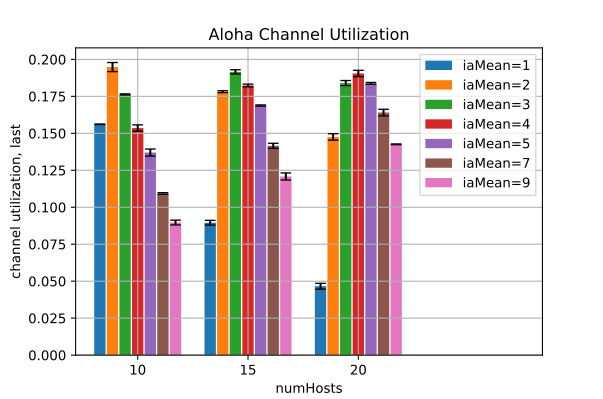
The resulting bar plot, featuring error bars as the confidence interval
utils.postconfigure_plot(props)
This line applies the remaining visual properties to the plot.
utils.export_image_if_needed(props)
utils.export_data_if_needed(df, props)
These lines perform image and data export. Exporting is accomplished by executing
chart scripts with certain properties set to indicate the desire to export.
utils.export_image_if_needed() and
utils.export_data_if_needed() take those flag properties, as well as
numerous other properties related to exporting. The latter saves the provided
dataframe as a file.
Alternatives
Based on your personal preferences, you may choose to use a different environment, language, or tool than the IDE’s Analysis tool for analyzing simulation results. Here are some of the possibilities:
Use your favorite Python editor to write the analysis scripts, using the packages mentioned in the previous section.
A Jupyter Notebook can also be used to write up the analysis steps, still using Python and the above packages.
If your simulations produce a large amount of data, you might prefer using the SQLite result file format, which allows you to run queries without loading all data into memory. Python also has packages to access SQLite files, e.g.
sqlite3.If you prefer GNU R over Python/Pandas, it is also a good option.
You may also choose to use MATLAB or GNU Octave if you are more comfortable with them.
Spreadsheet programs such as Microsoft Excel might be suitable if the amount of data allows it. One drawback of using spreadsheets is the manual work associated with preparing and reloading data every time simulations are rerun.
A dedicated visual analytics environment such as Tableau might be a better choice than spreadsheets.
For environments where reading OMNeT++ result files or SQLite result files is not feasible, the easiest way to proceed is to export simulation results into CSV with opp_scavetool. CSV is a universal format that nearly all tools understand.