Graphics and Visualization
Overview
OMNeT++ simulations can be run under graphical user interfaces like Qtenv that offer visualization and animation, along with interactive execution and other features. This chapter deals with model visualization.
OMNeT++ essentially provides four main tools for defining and enhancing model visualization:
Display strings are the traditional way. They are per-component strings that encode how the component (module or channel) will appear in the graphical user interface. Display strings can be specified in NED files and can also be manipulated programmatically at runtime.
The canvas. The same user interface area that contains submodules and connections (i.e. the canvas) can also display additional graphical elements that OMNeT++ calls figures. Using figures, one can display lines, curves, polygons, images, and text items, as well as anything that can be created by combining them and applying effects like rotation and scaling. Like display strings, figures can also be specified in NED files, but it is generally more useful to create and manipulate them programmatically. Every module has its own default canvas, and extra canvases can also be created at runtime.
3D visualization of the simulation’s virtual world is a third possibility. OMNeT++’s 3D visualization capabilities come from the open-source OpenSceneGraph library and its osgEarth extension. These libraries build on top of OpenGL, and beyond basic graphics functionality, they also offer high-level capabilities, such as reading 3D model files directly from disk or displaying maps, 3D terrain, or Earth as a planet using online map and satellite imagery data sources.
Support for smooth custom animation allows models to visualize their operation using sophisticated animations. The key idea is that the simulation model is called back from the runtime GUI (Qtenv) repeatedly at a reasonable “frame rate,” allowing it to continually update the canvas (2D) and/or the 3D scene to produce fluid animations.
The following sections will cover the above topics in more detail. But first, let us get acquainted with a new cModule virtual method that one can redefine and place visualization-related code into.
Placement of Visualization Code
Traditionally, when C++ code was needed to enhance visualization, such as updating a displayed status label or refreshing the position of a mobile node, it was embedded in the handleMessage() function, enclosed in blocks. This approach was less than ideal because the visualization code would run for all events in that module, not just before display updates when it was actually needed. In Express mode, for example, Qtenv would only refresh the display once every second or so, with a large number of events processed between updates. Therefore, visualization code placed inside handleMessage() could potentially waste a significant amount of CPU cycles. Additionally, visualization code embedded in handleMessage() is not suitable for creating smooth animations.
The refreshDisplay() Method
Starting from OMNeT++ version 5.0, visualization code can be placed into a dedicated method called refreshDisplay(). Using this method is more efficient than embedding visualization code into handleMessage(), because refreshTheDisplay() is called only as often as necessary by the graphical user interface to keep the display up to date.
refreshDisplay() is declared on cModule as:
virtual void refreshDisplay() const {}
Components that contain visualization-related code are expected to override refreshDisplay() and move visualization code, such as display string manipulation, canvas figure maintenance, and OSG scene graph updates, into it.
When and how is refreshDisplay() invoked? Generally, it is invoked right before the GUI performs a display update. With some additional rules, this boils down to the following:
It is invoked only under graphical user interfaces, currently Qtenv. It is never invoked under Cmdenv.
When invoked, it will be called on all components of the simulation. It does not matter if a module has a graphical inspector open or not. This design decision simplifies the handling of cross-module visualization dependencies. Runtime overhead is still not an issue, because display updates are only done at most a few times per second in Express mode. In other modes, raw event processing performance is of somewhat lesser importance. [1]
It is invoked right before display updates. This includes the following: after network setup; in Step and Run modes, before and after every event; in Fast and Express modes, after every “batch” of events; every time a new graphical inspector is opened, zoomed, navigated in, or closed; after model data (cPar, cDisplayString values, etc.) is edited, and after finalization.
If smooth animation is used, it is invoked continuously with a reasonably high frequency in Step, Run and Fast modes. This can mean anything from many times between processing two consecutive events to not even once until after the processing of a couple of events, depending on the current animation speed and event density.
Here is an example of how one would use it:
void FooModule::refreshDisplay() const
{
    // refresh statistics
    char buf[80];
    sprintf(buf, "Sent:%d  Rcvd:%d", numSent, numReceived);
    getDisplayString()->setTagArg("t", 0, buf);

    // update the mobile node's position
    Point pos = ...  // e.g. invoke a computePosition() method
    getDisplayString()->setTagArg("p", 0, pos.x);
    getDisplayString()->setTagArg("p", 1, pos.y);
}
One useful accessory to refreshDisplay() is the isExpressMode() method of cEnvir. It returns true if the simulation is running under a GUI in Express mode. Visualization code may check this flag and adapt the visualization accordingly. For example:
if (getEnvir()->isExpressMode()) {
    // display throughput statistics
}
else {
    // visualize current frame transmission
}
Advantages
Overriding refreshDisplay() has several advantages over putting the simulation code into handleMessage(). The first one is clearly performance. When running under Cmdenv, the runtime cost of visualization code is literally zero. When running in Express mode under Qtenv, it is practically zero because the cost of one update is amortized over several hundred thousand or million events.
The second advantage is also very practical: consistency of the visualization. If the simulation has cross-module dependencies such that an event processed by one module affects the information displayed by another module, with handleMessage()-based visualization, the model may have inconsistent visualization until the second module also processes an event and updates its displayed state. With refreshDisplay(), this does not happen because all modules are refreshed together.
The third advantage is separation of concerns. It is generally not a good idea to intermix simulation logic with visualization code, and refreshDisplay() allows one to completely separate the two.
Why is refreshDisplay() const?
Code in refreshDisplay() should never alter the state of the simulation
because that would destroy repeatability due to the fact that the timing and
frequency of refreshDisplay() calls are completely unpredictable from
the simulation model’s point of view. The fact that the method is declared
const gently encourages this behavior.
If visualization code makes use of internal caches or maintains some other
mutable state, such data members can be declared mutable to allow
refreshDisplay() to change them.
Smooth Animation
Concepts
Support for smooth custom animation enables models to visualize their operation using sophisticated animations. The key idea is that the simulation model is called back from the runtime GUI (Qtenv) repeatedly at a reasonable “frame rate,” allowing it to continually update the canvas (2D) and/or the 3D scene to produce fluid animations. Callback means that the refreshDisplay() methods of modules and figures are invoked.
refreshDisplay() knows the animation position from the simulation time and the animation time, a variable also made accessible to the model. If you think about the animation as a movie, animation time is simply the position in seconds in the movie. By default, the movie is played in Qtenv at normal (1x) speed, and then animation time is simply the number of seconds since the start of the movie. The speed control slider in Qtenv’s toolbar allows you to play it at higher (2x, 10x, etc.) and lower (0.5x, 0.1x, etc.) speeds; so if you play the movie at 2x speed, animation time will pass twice as fast as real time.
When smooth animation is turned on (more about that later), simulation time progresses in the model (piecewise) linearly. The speed at which the simulation progresses in the movie is called animation speed. Sticking to the movie analogy, when the simulation progresses in the movie 100 times faster than animation time, animation speed is 100.
Certain actions take zero simulation time, but we still want to animate them. Examples of such actions are the sending of a message over a zero-delay link, or a visualized C++ method call between two modules. When these animations play out, simulation is paused and simulation time stays constant until the animation is over. Such periods are called holds.
Smooth vs. Traditional Animation
Smooth animation is a relatively new feature in , and not all simulations need it. Smooth and traditonal, “non-smooth” animation in Qtenv are two distinct modes which operate very differently:
In Traditional animation, simulation events are essentially processed as fast as possible, and meanwhile, refreshDisplay() is called with some policy (e.g. once before/after each event, or at 1s intervals real-time) to keep the displayed graphics up to date.
Smooth animation is essentially a scaled realtime simulation, where refreshDisplay() is continually called with a reasonably high frame rate.
The factor that decides which operation mode is active is the presence of an animation speed. If there is no animation speed, traditional animation is performed; if there is one, smooth animation is done.
The Qtenv GUI has a dialog (Animation Parameters) which displays the current animation speed, among other things. This dialog allows the user to check at any time which operation mode is currently active. [2]
The Choice of Animation Speed
Different animation speeds may be appropriate for different animation effects. For example, when animating WiFi traffic where various time slots are on the microsecond scale, an animation speed on the order of \(10^-5\) might be appropriate; when animating the movement of cars or pedestrians, an animation speed of \(1\) is a reasonable choice. When several animations requiring different animation speeds occur in the same scene, one solution is to animate the scene using the lowest animation speed so that even the fastest actions can be visually followed by the human viewer.
The solution provided by OMNeT++ for the above problem is the following. Animation speed cannot be controlled explicitly, only requests may be submitted. Several parts of the models may request different animation speeds. The effective animation speed is computed as the minimum of the animation speeds of visible canvases, unless the user interactively overrides it in the UI, for example by imposing a lower or upper limit.
An animation speed request may be submitted using the setAnimationSpeed()
method of cCanvas. [3] The setAnimationSpeed() method takes two arguments:
the animation speed value (a double) and an object pointer (cObject*)
that identifies the part of the model that requests it. The second, object parameter
is used as a key that allows the request to be updated or withdrawn later.
Typically, the pointer of the module that makes the request (i.e. this) is
used for that purpose. Calling setAnimationSpeed() with zero animation
speed cancels the request.
An example:
cCanvas *canvas = getSystemModule()->getCanvas(); // toplevel canvas
canvas->setAnimationSpeed(2.0, this); // one request
canvas->setAnimationSpeed(1e-6, macModule); // another request
...
canvas->setAnimationSpeed(1.0, this); // overwrite first request
canvas->setAnimationSpeed(0, macModule); // cancel second request
In practice, built-in animation effects such as message sending animation also submit their own animation speed requests internally, so they also affect the effective animation speed chosen by Qtenv.
The current effective animation speed can be obtained from the environment of the simulation (cEnvir, see chapter Embedding the Simulation Kernel for context):
double animSpeed = getEnvir()->getAnimationSpeed();
Animation time can be accessed like this:
double animTime = getEnvir()->getAnimationTime();
Animation time starts from zero, and monotonically increases with simulation time and also during “holds”.
Holds
As mentioned earlier, a hold interval is an interval when only animation takes place, but simulation time does not progress and no events are processed. Hold intervals are intended for animating actions that take zero simulation time.
A hold can be requested with the holdSimulationFor() method of cCanvas, which accepts an animation time delta as parameter. If a hold request is issued when there is one already in progress, the current hold will be extended as needed to incorporate the request. A hold request cannot be cancelled or shrunk.
cCanvas *canvas = getSystemModule()->getCanvas(); // toplevel canvas
canvas->holdSimulationFor(0.5); // request a 0.5s (animation time) hold
When rendering frames in refreshDisplay() during a hold, the code can use animation time to determine the position in the animation. If the code needs to know the animation time elapsed since the start of the hold, it should query and remember the animation time when issuing the hold request.
If the code needs to know the animation time remaining until the end of the hold, it can use the getRemainingAnimationHoldTime() method of cEnvir. Note that this is not necessarily the time remaining from its own hold request, because other parts of the simulation might extend the hold.
Disabling Built-In Animations
If a model implements such full-blown animations for a compound module that OMNeT++’s default animations (message sending/method call animations) become a liability, they can be programmatically turned off for that module with cModule’s setBuiltinAnimationsAllowed() method:
// disable animations for the toplevel module
cModule *network = getSimulation()->getSystemModule();
network->setBuiltinAnimationsAllowed(false);
Display Strings
Display strings are concise textual descriptions that specify the arrangement and appearance of the graphical representations of modules and connections in graphical user interfaces (currently Qtenv).
Display strings are usually specified in NED’s @display property, but it
is also possible to modify them programmatically at runtime.
Display strings can be used in the following contexts:
submodules – display strings can contain position, arrangement (for module vectors), icon, icon color, auxiliary icon, status text, communication range (as a circle or filled circle), tooltip, etc.
compound modules, networks – display strings can specify background color, border color, border width, background image, scaling, grid, and unit of measurement, etc.
connections – display strings can specify positioning, color, line width, line style, text, and tooltip
messages – display strings can specify icon, icon color, etc.
Syntax and Placement
Syntax
Display strings are specified in @display properties in NED files. The
property must contain a single string value. The string should consist of a
semicolon-separated list of tags. Each tag consists of a key, an equal sign, and
a comma-separated list of arguments:
@display("p=100,100;b=60,10,rect,blue,black,2")
Tag arguments may be omitted both at the end and inside the parameter list. If
an argument is omitted, a reasonable default value is used. In the following
example, the first and second arguments of the b tag are omitted.
@display("p=100,100;b=,,rect,blue")
Placement
Display strings can be placed in the parameters section of module and
channel type definitions, as well as in submodules and connections. The
following NED sample illustrates the placement of display strings in the code:
simple Server
{
    parameters:
        @display("i=device/server");
    ...
}

network Example
{
    parameters:
        @display("bgi=maps/europe");
    submodules:
        server: Server {
            @display("p=273,101");
        }
        ...
    connections:
        client1.out --> { @display("ls=red,3"); } --> server.in++;
}
Quoting
Since commas and semicolons are part of the display string syntax, they need to
be escaped in the NED file when they occur as part of a value (e.g., annotation
label or tooltip text). Specifically, to include a comma, semicolon, or equal
sign in a tag value, it should be prefixed with two backslashes:
\\,, \\;,
\\=. To include a literal backslash in a tag
value, it should be written as four backslashes:
\\\\. Tab or
newline characters can be included in a tag value by writing them as
\t and \n, respectively.
The reason for the above rules is that display strings specified in NED files are string literals, so backslash escape sequences are interpreted by the NED parser first. It handles tabs, newlines, and literal backslashes and quotation marks. Double backslashes become single backslashes after this step. Then, the string value is parsed by the display string parser, which splits the string into tags and values. In this step, the remaining backslashes that are in front of commas, semicolons, or equal signs remove their special meanings, a backslash in front of another backslash generates a single backslash, and the rest of the backslashes are ignored.
Examples:
@display("t=Hello\\, world!");  // -> Hello, world!
@display("t=C:\\\\Windows\\\\Temp"); // -> C:\Windows\Temp
@display("t=\"Hello\\,\" Martin said."); // -> "Hello," Martin said.
Parameter References
In addition to literal values, display strings may also contain embedded
NED expressions and references to module/channel parameters, made available
with the ${...} and $foo syntaxes, respectively. These features
are described in detail in Parameter Substitution
and Embedded Expressions.
To add a literal dollar sign to a display string value, double it:
@display("t=Price: $$50"); // -> Price: $50
Commas and semicolons inside ${...} do not need to be escaped with a backslash.
Inheritance
At runtime, every module and channel object has a single display string object
that controls its appearance in various contexts. The initial value of this
display string object comes from merging the @display properties
occurring at various places in NED files. This section describes the rules for
merging @display properties to create the module or channel’s display
string.
Derived NED types inherit their display string from their base NED type.
Submodules inherit their display string from their type.
Connections inherit their display string from their channel type.
The base NED type’s display string is merged into the current display string using the following rules:
Inheriting. If a tag or tag argument is present in the base display string but not in the current one, it will be added to the result. Example:
"i=block/sink"(base) +"p=20,40;i=,red"(current) \(\rightarrow\)"p=20,40;i=block/sink,red"Overwriting. If a tag argument is present in both the base and current display strings, the tag argument in the current display string will take priority. Example:
"b=40,20,oval"+"b=,30"\(\rightarrow\)"b=40,30,oval"Erasing. If the current display string contains a tag argument with the value “-” (hyphen), that tag argument will be empty in the result. Example:
"i=block/sink,red"+"i=,-"\(\rightarrow\)"i=block/sink"
The result of merging the @display properties will be used to
initialize the display string object (cDisplayString) of the
module or channel. The display string object can then still be modified
programmatically at runtime.
Note
If a tag argument is empty, the GUI may use a suitable default value. For example, if the border color for a rectangle is not specified in the display string, the GUI may use black. This default value cannot be queried programmatically.
Example of display string inheritance:
simple Base {
    @display("i=block/queue"); // use a queue icon in all instances
}

simple Derived extends Base {
    @display("i=,red,60");  // ==> "i=block/queue,red,60"
}

network SimpleQueue {
    submodules:
        submod: Derived {
            @display("i=,yellow,-;p=273,101;r=70");
                     // ==> "i=block/queue,yellow;p=273,101;r=70"
        }
        ...
}
Submodule Tags
The following tags of the module display string are in effect in submodule context, that is, when the module is displayed as a submodule of another module:
i– iconis– icon sizeit– icon transform (rotation, flip, scale)i2– auxiliary or status iconb– shape (box, oval, etc.)p– positioning and layoutg– layout groupr– range indicatorq– queue information textt– texttt– tooltip
The following sections provide an overview and examples for each tag. More detailed information, such as what each tag argument means, is available in Appendix Appendix: Display String Tags.
Icons
By default, modules are displayed with a simple default icon, but OMNeT++ comes
with a large set of categorized icons to choose from. To see what icons are
available, look into the images/ folder in the OMNeT++ installation. The
stock icons installed with OMNeT++ have several size variants. Most of them have
very small (vs), small (s), large (l), and very large (vl) versions.
One can specify the icon with the i tag. The icon name should be given
with the name of the subfolder under images/, but without the file name
extension. The size may be specified with the icon name suffix (_s for
very small, _vl for very large, etc.), or in a separate is tag.
An example that displays the block/source icon in a large size:
@display("i=block/source;is=l");
Icons can also be colorized, which can often be useful. Color can indicate the status or grouping of the module, or simply serve aesthetic purposes. The following example makes the icon 20% red:
@display("i=block/source,red,20");

Status Icon
Modules can also display a small auxiliary icon in the top-right corner of the
main icon. This icon can be useful for displaying the status of the module, for
example, and can be set with the i2 tag. Icons suitable for use with
i2 are in the status/ category.
An example:
@display("i=block/queue;i2=status/busy");

Shapes
To have a simple but resizable representation for a module, one can use the
b tag to create geometric shapes. Currently, oval and
rectangle are supported.
The following example displays an oval shape with a size of 70x30, a 4-pixel black border, and red fill:
@display("b=70,30,oval,red,black,4");

Positioning
The p tag allows one to define the position of a submodule or otherwise affect its placement.
Note
If the p tag is missing or doesn’t specify the position, OMNeT++ will use a
layouting algorithm to automatically place the module. The layouting algorithm
is covered in section Layouting.
The following example will place the module at the given position:
@display("p=50,79");
Note
Coordinates and distances in p, b or r tags need not
be integers. Fractional numbers make sense because runtime GUIs like
Qtenv support zooming.
If the submodule is a module vector, one can also specify in the p
tag how to arrange the elements of the vector. They can be arranged in a
row, a column, a matrix, a ring or a centered ring. The rest of the arguments in the p
tag depend on the layout type:
TODO refine, e.g. list accepted abbreviations for matrix etc; what if x,y are missing; delta args are optional; etc
Row:
p=\(x\),\(y\),r,\(deltaX\)[,\(numCols\),\(deltaY\)](A row of modules with \(deltaX\) units between the modules. If \(numCols\) is given, wraps into multiple rows after that many columns.)Column:
p=\(x\),\(y\),c,\(deltaY\)[,\(numRows\),\(deltaX\)](A column of modules with \(deltaY\) units between the modules. If \(numRows\) is given, wraps into multiple columns after that many rows.)Matrix:
p=\(x\),\(y\),m,\(numCols\),\(deltaX\),\(deltaY\) (A matrix with \(numCols\) columns, with \(deltaX\) and \(deltaY\) units between rows and columns)Ring:
p=\(x\),\(y\),ri,\(rx\),\(ry\) (A ring (oval) with \(rx\) and \(ry\) as the horizontal and vertical radius. The \((x,y)\) coordinates correspond to the upper left corner of the bounding rectangle.)Centered ring:
p=\(x\),\(y\),cr,\(rx\),\(ry\) (Same as ring, but the \((x,y)\) coordinates correspond to the center of the ring.)Exact (default):
p=\(x\),\(y\),x,\(deltaX\),\(deltaY\) (Place each module at \((x+deltaX, y+deltaY)\). The coordinates are often set at runtime.)
A matrix layout for a module vector (note that the first two arguments, \(x\) and \(y\) are omitted, so the submodule matrix as a whole will be placed by the layouter algorithm):
host[20]: Host {
    @display("p=,,m,4,50,50");
}
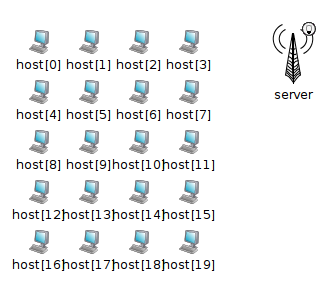
Matrix arrangement using the \(p\) tag
Layout Group
Layout groups allow modules that are not part of the same submodule vector to be
arranged in a row, column, matrix, or ring formation as described in the p
tag’s third (and further) parameters.
The g tag expects a single string parameter, the group name. All sibling
modules that share the same group name are treated for layouting purposes as if
they were part of the same submodule vector, with the “index” being the order of
submodules within their parent.
Wireless Range
In wireless simulations, it is often useful to display a circle or disc around
the module to indicate transmission range, reception range, or interference
range. This can be done with the r tag.
In the following example, the module will have a circle with a radius of 90 units as a range indicator:
submodules:
    ap: AccessPoint {
        @display("p=50,79;r=90");
    }
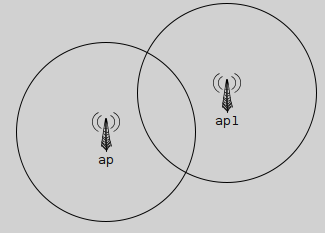
Range indicator using the \(r\) tag
Queue Length
If a module contains a queue object (cQueue), it is possible to display
the queue length next to the module icon in the graphical user interface. To
achieve this, one needs to specify the queue object’s name (the string set via
the setName() method) in the q display string tag. OMNeT++ finds
the queue object by traversing the object tree inside the module.
The following example displays the length of the queue named "jobQueue":
@display("q=jobQueue");
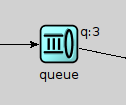
Text and Tooltip
It is possible to display a short text next to or above the module icon or shape
using the t tag in the display string. The tag allows one to specify the
placement (left, right, above) and the color of the text. To display text in a
tooltip, use the tt tag.
The following example displays text above the module icon and also adds tooltip text that can be seen by hovering over the module icon with the mouse:
@display("t=Packets sent: 18;tt=Additional tooltip information");
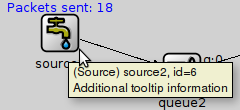
Note
The t and tt tags, when set at runtime, can be used to display
information about the module’s state. The setTagArg() method
of cDisplayString can be used to update the text:
getDisplayString().setTagArg("t", 0, str);
For a detailed descripton of the display string tags, check Appendix Appendix: Display String Tags.
Background Tags
The following tags of the module display string are in effect when the module itself is opened in a GUI. These tags mostly deal with the visual properties of the background rectangle.
bgb– size, color and border of the background rectanglebgi– background image and its display modebgtt– tooltip above the backgroundbgg– background grid: color, spacing, etc.bgu– measurement unit of coordinates/distances
In the following example, the background area is defined to be 6000x4500 units, and the map of Europe is used as a background, stretched to fill the whole area. A grid is also drawn, with 1000 units between major ticks, and 2 minor ticks per major tick.
network EuropePlayground
{
    @display("bgb=6000,4500;bgi=maps/europe,s;bgg=1000,2,grey95;bgu=km");
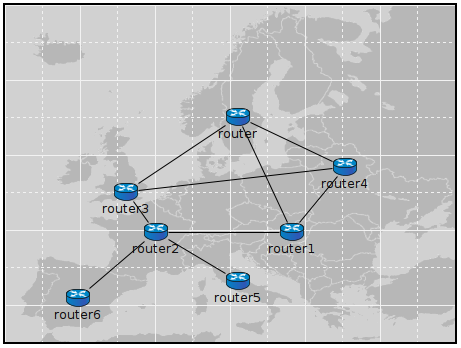
Background image and grid
The bgu tag deserves special attention. It does not affect
the visual appearance, but instead it is a hint for model code
on how to interpret coordinates and distances in this compound
module. The above example specifies bgu=km, which means
that if the model attaches physical meaning to coordinates and
distances, then those numbers should be interpreted as kilometers.
More detailed information, such as what each tag argument means, is available in Appendix Appendix: Display String Tags.
Connection Display Strings
Connections may also have display strings. Connections inherit the display string property from their channel types, in the same way as submodules inherit theirs from module types. The default display strings are empty.
Connections support the following tags:
ls– line style and colort– texttt– tooltipm– routing constraint (direction of departure and arrival)
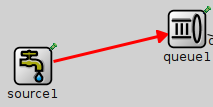
Example of a thick, red connection:
source1.out --> { @display("ls=red,3"); } --> queue1.in++;
Note
To hide a connection, specify zero line width in the display string:
"ls=,0".
Connection Routing
The m tag controls how a connection is routed between two modules.
The routing rules differ depending on whether the connection goes from
a submodule to its parent module, or between two submodules.
Submodule to parent.
The syntax is m=<dir>, where dir is a cardinal direction
letter (n, e, s, w) that specifies which edge of
the parent module the connection should reach. If omitted or set to a
(auto), the nearest edge is used.
child.out++ --> { @display("m=n"); } --> out++;   // go to north edge of parent
child.out++ --> { @display("m=w"); } --> out++;   // go to west edge of parent
child.out++ --> out++;                            // nearest edge (auto)
Submodule to submodule.
The syntax is m=<srcDir>,<destDir>, where each direction specifies
the preferred axis along which the connection should leave the source or enter
the destination module. Accepted values are h (horizontal, i.e. leave
or enter via the east or west edge) and v (vertical, i.e. via the
north or south edge). The values e and w are synonyms for
h; n and s are synonyms for v. Either or both
directions may be left empty (unconstrained).
a.out --> { @display("m=h,v"); } --> b.in;   // leave horizontally, arrive vertically (L-shape)
a.out --> { @display("m=v,h"); } --> b.in;   // leave vertically, arrive horizontally (L-shape)
a.out --> { @display("m=h"); } --> b.in;     // leave horizontally, arrive auto
a.out --> { @display("m=,v"); } --> b.in;    // leave auto, arrive vertically
Routing rules. The following rules are applied in priority order:
Overlap rule (strongest). If the bounding rectangles of the source and destination modules have meaningful overlap in either the x or y direction, a straight horizontal or vertical line is drawn through the overlap zone, regardless of any specified directions.
L-shape rule. If there is no overlap and at least one direction is specified (and not the invalid same-axis combination
h,horv,v), an L-shaped route with one bend point is produced. The constrained endpoint exits or enters along the specified axis; the unconstrained endpoint uses the other axis as implied by the geometry.Fallback. If no direction is specified, or the combination is invalid (
h,horv,v), a straight line is drawn between the two modules.
Bundling. When there are multiple connections between the same pair of modules (a bundle), the connections are spread apart to avoid overlapping. For straight segments, they are distributed within the overlap zone. For L-shaped routes, the same offset is applied to both the exit and entry edges, resulting in parallel L-shapes. Note that bundling offset is optional in Qtenv (only turned on when requested in the GUI).
Other modes.
The value m=a selects automatic routing (equivalent to leaving both
directions empty). The value
m=m,``sx``,``sy``,``dx``,``dy`` selects manual
mode, where the connection endpoints are placed at the specified percentages
of the source and destination module’s bounding rectangles.
More detailed information, such as what each tag argument means, is available in Appendix Appendix: Display String Tags.
Message Display Strings
Message display strings affect how messages are shown during animation. By default, they are displayed as a small filled circle, in one of 8 basic colors (the color is determined as message kind modulo 8), and with the message class and/or name displayed under it. The latter is configurable in the Preferences dialog of Qtenv, and message kind dependent coloring can also be turned off there.
How to Specify
Message objects do not store a display string by default. Instead, cMessage defines a virtual getDisplayString() method that one can override in subclasses to return an arbitrary string. The following example adds a display string to a new message class:
class Job : public cMessage
{
  public:
    const char *getDisplayString() const {return "i=msg/packet;is=vs";}
    //...
};
Since message classes are often defined in msg files (see chapter
Message Definitions), it is often convenient to let the message compiler
generate the getDisplayString() method. To achieve that, add a
string field named displayString with an initializer to the message
definition. The message compiler will generate setDisplayString()
and getDisplayString() methods into the new class, and also set the
initial value in the constructor.
An example message file:
message Job
{
    string displayString = "i=msg/package_s,kind";
    //...
}
Tags
The following tags can be used in message display strings:
b– shape, colori– iconis– icon size
Note
In message display strings, kind is accepted as a special color name.
It will cause the color to be derived from message kind field in the message.
The following example displays a small red box icon:
@display("i=msg/box,red;is=s");
The next one displays a 15x15 rectangle, with while fill, and with a border color dependent on the message kind:
@display("b=15,15,rect,white,kind,5");
More detailed information, such as what each tag argument means, is available in Appendix Appendix: Display String Tags.
Parameter Substitution
In addition to literal values, display strings may also contain embedded NED
expressions and references to module/channel parameters, made available with the
${...} and $foo syntaxes, respectively. To add a literal
dollar sign to a display string value, double it.
Here is an example for referencing module/channel parameters:
simple MobileNode
{
    parameters:
        double xpos;
        double ypos;
        string fillColor;
        // get the values from the module parameters xpos,ypos,fillcolor
        @display("p=$xpos,$ypos;b=60,10,rect,$fillColor,black,2");
}
There is also a fallback to the parameters of the parent component.
Embedded Expressions
Arbitrary NED expressions can be embedded in display strings using the
${...} notation. These expressions are evaluated in the context of the
display string’s owner component, which means that identifiers refer to the
parameters of the component.
As opposed to the $foo syntax, there is no fallback to the parameters of
the parent module. To refer to the parent module’s foo parameter, the
parameter name must be qualified with the parent keyword:
${parent.foo}.
@display("p=${parent.xpos + r*cos(phi)},${$parent.ypos + r*sin(phi)}");
These expressions are evaluated every time the appearance of the component is refreshed, so volatile parameters and random numbers will take effect at every display refresh.
Colors
Color Names
A color may be given in several forms. One form is English names: blue,
lightgrey, wheat, etc. The list includes all standard SVG color
names.
Another acceptable form is the HTML RGB syntax: #rgb or #rrggbb, where r, g, b are hexadecimal digits.
Colors can also be specified in HSB (hue-saturation-brightness) as @hhssbb (with h, s, b being hexadecimal digits). HSB makes it easier to scale colors, e.g., from white to bright red.
One can produce a transparent background by specifying a hyphen (“-”) as the background color.
In message display strings, kind can also be used as a special color name.
It will map the message kind to a color. (See the getKind() method of
cMessage.)
Icon Colorization
The "i=" display string tag allows for colorization of icons. It accepts a
target color and a percentage as the degree of colorization. The percentage has
no effect if the target color is missing. The brightness of the icon is also
affected. To keep the original brightness, specify a color with about 50%
brightness (e.g., #808080 mid-grey, #008000 mid-green).
Examples:
"i=device/server,gold"creates a gold server icon"i=misc/globe,#808080,100"makes the icon greyscale"i=block/queue,white,100"yields a “burnt-in” black-and-white icon
Colorization works with both submodule and message icons.
Icons
The Image Path
In the current OMNeT++ version, module icons are PNG or GIF files. The icons shipped
with OMNeT++ are in the images/ subdirectory. The IDE and Qtenv
need the exact location of this directory to be able to load the icons.
Icons are loaded from all directories in the image path,
a semicolon-separated list of directories.
The default image path is compiled into Qtenv with the value
"``<omnetpp>``/images;./images". This works fine (unless the
OMNeT++ installation is moved), and the ./images part also allows
icons to be loaded from the images/ subdirectory of the current
directory. As users typically run simulation models from the model’s
directory, this practically means that custom icons placed in the
images/ subdirectory of the model’s directory are automatically
loaded.
The compiled-in image path can be overridden with the OMNETPP_IMAGE_PATH
environment variable. The way of setting environment variables is system
specific. In Unix, if one is using the bash shell, adding a line
export OMNETPP_IMAGE_PATH="$HOME/omnetpp/images;./images"
to ~/.bashrc or ~/.bash_profile will
do. On Windows, environment variables can be set via the My Computer –>
Properties dialog.
One can extend the image path from omnetpp.ini with the
image-path option, which is prepended to the environment
variable’s value.
[General]
image-path = "/home/you/model-framework/images;/home/you/extra-images"
Categorized Icons
Icons are organized into several categories, represented by folders. These categories include:
abstract/- symbolic icons for various devicesbackground/- images useful as background, such as terrain mapsblock/- icons for subcomponents (queues, protocols, etc.)device/- network device icons: servers, hosts, routers, etc.misc/- icons for nodes, subnets, clouds, buildings, towns, cities, etc.msg/- icons that can be used for messagesstatus/- status icons such as up, down, busy, etc.
Icon names to be used with the i, bgi, and other tags should contain
the subfolder (category) name but not the file extension. For example,
/opt/omnetpp/images/block/sink.png should be referred to as
block/sink.
Icon Size
Icons come in various sizes: normal, large, small, very small, and very large.
Sizes are encoded into the icon name’s suffix: _vl, _l, _s,
_vs. In display strings, one can either use the suffix
("i=device/router_l") or the "is" (icon size) display string tag
("i=device/router;is=l"), but not both at the same time (we recommend
using the is tag).
Icon Transform
The "it" (icon transform) display string tag allows rotating, flipping,
and scaling the module icon. The syntax is
it=<degrees>,<flip>,<scaleX>,<scaleY>, where all arguments are optional:
degrees– rotation in degrees, clockwise (default: 0)flip–hfor horizontal flip,vfor vertical flip,bfor both (default: none)scaleX– horizontal scaling factor (floating-point, default: 1.0)scaleY– vertical scaling factor (floating-point, default: same as scaleX)
Transformations are applied in the following order: scale and flip first, then
rotation. The transform only affects the main icon ("i" tag), not the
shape ("b" tag) or the overlay icon ("i2" tag).
Examples:
@display("i=misc/antenna;it=45");       // rotate 45 degrees
@display("i=misc/antenna;it=,h");       // flip horizontally
@display("i=misc/antenna;it=90,v,2");   // scale 2x, flip vertically, rotate 90
@display("i=misc/antenna;it=,,1.5,0.5"); // stretch: 1.5x wide, 0.5x tall
Layouting
OMNeT++ implements an automatic layouting feature using a variation of the Spring
Embedder algorithm. Modules that have not been assigned explicit positions via
the "p=" tag will be automatically placed by the algorithm.
Spring Embedder is a graph layouting algorithm based on a physical model. Graph nodes (modules) repel each other like electric charges of the same sign, and connections act as springs that pull nodes together. There is also friction built in to prevent oscillation of the nodes. The layouting algorithm simulates this physical system until it reaches equilibrium (or times out). The physical rules mentioned earlier have been slightly tweaked to achieve better results.
The algorithm doesn’t move any module that has fixed coordinates. Modules
that are part of a predefined arrangement (row, matrix, ring, etc., defined
via the 3rd and further args of the "p=" tag) will be moved together
to preserve their relative positions.
Note
The positions of modules placed by the layouting algorithm are not available from simulation models. Consider what positions OMNeT++ should report if the model is run under Cmdenv or under Qtenv but the compound module was never opened in the GUI. The absence of explicit coordinates in the NED file conceptually means that the modeler doesn’t care about the position of that module.
Caveats:
If the full graph is too big after layouting, it will be scaled back to fit on the screen, unless it contains any fixed-position modules. To prevent rescaling, one can specify a sufficiently large bounding box in the background display string, e.g., “b=2000,3000”.
Submodule size is ignored by the present layouter, so modules with elongated shapes may not be placed ideally.
The algorithm may produce erratic results, especially for small graphs when the number of submodules is small or when using predefined (matrix, row, ring, etc.) layouts. In such cases, the Relayout toolbar button can be useful. Larger networks usually produce satisfactory results.
The algorithm starts by placing the nodes randomly, and this initial arrangement greatly affects the end result. The algorithm has its own random number generator (RNG) that starts from a default seed. The Relayout button changes this seed, and the seed is persistently stored so that later runs of the model will produce the same layout.
Changing Display Strings at Runtime
It is often useful to manipulate the display string at runtime. Changing colors, icons, or text may convey status changes, and changing a module’s position is useful when simulating mobile networks.
Display strings are stored in cDisplayString objects inside channels, modules, and gates. cDisplayString also allows one to manipulate the string.
As far as cDisplayString is concerned, a display string (e.g.,
"p=100,125;i=cloud") is a string that consists of several tags
separated by semicolons, and each tag has a name and zero or more
arguments separated by commas.
The class facilitates tasks such as finding out what tags a display string has, adding new tags, adding arguments to existing tags, removing tags, or replacing arguments. The internal storage method allows very fast operation, which is generally faster than direct string manipulation. The class doesn’t try to interpret the display string in any way, nor does it know the meaning of the different tags. It merely parses the string as data elements separated by semicolons, equal signs, and commas.
To get a pointer to a cDisplayString object, one can call the component’s getDisplayString() method.
Note
The connection display string is stored in the channel object, but it can also be accessed via the source gate of the connection.
The display string can be overwritten using the parse() method. Tag arguments can be set with setTagArg(), and tags removed with removeTag().
The following example sets a module’s position, icon, and status icon in one step:
cDisplayString& dispStr = getDisplayString();
dispStr.parse("p=40,20;i=device/cellphone;i2=status/disconnect");
Setting an outgoing connection’s color to red:
cDisplayString& connDispStr = gate("out")->getDisplayString();
connDispStr.parse("ls=red");
Setting module background and grid with background display string tags:
cDisplayString& parentDispStr = getParentModule()->getDisplayString();
parentDispStr.parse("bgi=maps/europe;bgg=1000,2");
The following example updates a display string to contain the p=40,20 and
i=device/cellphone tags:
dispStr.setTagArg("p", 0, 40);
dispStr.setTagArg("p", 1, 20);
dispStr.setTagArg("i", 0, "device/cellphone");
Bubbles
Modules can display a transient bubble with a short message (e.g. “Going
down” or “Connection established”) by calling the bubble() method of
cComponent. The method takes the string to be displayed as a
const char * pointer.
An example:
bubble("Going down!");
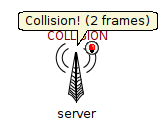
If the module often displays bubbles, it is recommended to make the corresponding code conditional on hasGUI(). The hasGUI() method returns false if the simulation is running under Cmdenv.
if (hasGUI()) {
    char text[32];
    sprintf(text, "Collision! (%s frames)", numCollidingFrames);
    bubble(text);
}
The Canvas
Overview
The canvas is the 2D drawing API of OMNeT++. It allows users to display lines, curves, polygons, images, text items, and combinations of these elements. The canvas API provides features such as color, transparency, geometric transformations, antialiasing, and more. Drawings created with the canvas API can be viewed when running the simulation under a graphical user interface like Qtenv.
The canvas API can be used for various purposes, such as displaying textual annotations, status information, live statistics in the form of plots, charts, gauges, counters, etc. In different types of simulations, the canvas API can be used to draw different types of graphical presentations. For example, in mobile and wireless simulations, the canvas API can be used to draw the scene including a background (such as a street map or floor plan), mobile objects (vehicles, people), obstacles (trees, buildings, hills), antennas with orientation, and additional information like connectivity graphs, movement trails, and individual transmissions.
Multiple canvases can be created, and each module already has a default canvas. The default canvas is the one on which the module’s submodules and internal connections are displayed. The default canvas can be enhanced using the canvas API to enrich the default presentation of a compound module.
In OMNeT++, the items that appear on a canvas are called figures. The corresponding C++ types for figures are cCanvas and cFigure. cFigure is an abstract base class, and different types of figures are represented by various subclasses of cFigure.
Figures can be defined statically in NED files using @figure properties,
and can also be accessed, created, and manipulated programmatically at runtime.
Creating, Accessing, and Viewing Canvases
A canvas is represented by the cCanvas C++ class. The default canvas of a module can be accessed with the getCanvas() method of cModule. For example, a toplevel submodule can obtain the network’s canvas with the following line of code:
cCanvas *canvas = getParentModule()->getCanvas();
By using the canvas pointer, it is possible to check the figures it contains, add new figures, manipulate existing ones, and perform other operations.
New canvases can be created by instantiating new cCanvas objects. For example:
cCanvas *canvas = new cCanvas("liveStatistics");
To view the contents of additional canvases in Qtenv, one needs to navigate to the owner object of the canvas (usually the module that created the canvas), view the list of objects it contains, and double-click the canvas in the list. Giving meaningful names to extra canvas objects can simplify the process of locating them in the Qtenv GUI.
Figure Classes
The base class of all figure classes is cFigure. The class hierarchy is shown in figure cFigure class hierarchy.
cFigure class hierarchy
In the following sections, we will first describe features that are common to all figures, then briefly cover each figure class, and finally discuss how one can define new figure types.
Note
Figures are only data storage classes. The actual drawing code is implemented in Qtenv, which might involve a parallel data structure, figure renderer classes, etc. When the canvas is not viewed, corresponding objects in Qtenv do not exist. Therefore, the data flow is largely one-directional – from figures to GUI.
The Figure Tree
Figures on a canvas are organized into a tree structure. The canvas has a hidden root figure, and all top-level figures are its children. Any figure can contain child figures, not just dedicated ones like cGroupFigure.
Every figure has a name string, inherited from cNamedObject. Since figures are organized in a tree, every figure also has a hierarchical name. It consists of the names of figures in the path from the root figure down to the figure, joined with dots. (The name of the root figure itself is omitted.)
Child figures can be added to a figure using the addFigure() method, or inserted into the child list relative to a sibling using the insertBefore() and insertAfter() methods. addFigure() has two variants: one for appending and one for inserting at a specific position. Child figures can be accessed by name using getFigure(name), or enumerated by index in the child list using getFigure(k) and getNumFigures(). The index of a child figure can be obtained using findFigure(). The removeFromParent() method can be used to remove a figure from its parent.
For convenience, cCanvas also provides methods like addFigure(), getFigure(), and getNumFigures() for managing top-level figures without the need to go through the root figure.
The following code enumerates the children of a figure named "group1":
cFigure *parent = canvas->getFigure("group1");
ASSERT(parent != nullptr);
for (int i = 0; i < parent->getNumFigures(); i++)
    EV << parent->getFigure(i)->getName() << endl;
It is also possible to locate a figure by its hierarchical name (getFigureByPath()) and to find a figure by its non-hierarchical name anywhere in a figure subtree (findFigureRecursively()).
The dup() method of figure classes only duplicates the figure it is called on. (The duplicate will not have any children.) To clone a figure including its children, use the dupTree() method.
Creating and Manipulating Figures from NED and C++
As mentioned earlier, figures can be defined in the NED file, so they do not always need to be created programmatically. This possibility is useful for creating static backgrounds or statically defining placeholders for dynamically displayed items, among other use cases. Figures defined from NED can be accessed and manipulated from C++ code in the same way as dynamically created ones.
Figures are defined in NED by adding @figure properties to a module
definition. The hierarchical name of the figure goes into the property index,
enclosed in square brackets after @figure. The parent of the figure must
already exist. For example, when defining foo.bar.baz, both foo and
foo.bar must have already been defined in the NED file.
The type and various attributes of the figure are specified in the property body
as key-value pairs. For example, type=line creates a cLineFigure,
type=rectangle creates a cRectangleFigure, type=text
creates a cTextFigure, and so on. The list of accepted types is
provided in appendix Appendix: Figure Definitions. Additional attributes
correspond to getters and setters of the C++ class denoted by the type
attribute.
The following example creates a green rectangle and the text “placeholder” inside it in NED. The subsequent C++ code changes the text to “Hello World!”.
NED part:
module Foo
{
    @display("bgb=800,500");
    @figure[box](type=rectangle; coords=10,50; size=200,100; fillColor=green);
    @figure[box.label](type=text; coords=20,80; text=placeholder);
}
And the corresponding C++ code:
// We assume this code runs in a submodule of the "Foo" module.
cCanvas *canvas = getParentModule()->getCanvas();

// Obtain the figure pointer by hierarchical name and change the text.
cFigure *figure = canvas->getFigureByPath("box.label");
cTextFigure *textFigure = check_and_cast<cTextFigure *>(figure);
textFigure->setText("Hello World!");
Stacking Order
The stacking order (also known as Z-order) of figures is determined jointly by the child order and the cFigure attribute called Z-index, with the latter taking priority. The Z-index is not used directly, but instead an effective Z-index is computed as the sum of the Z-index values of the figure and all its ancestors up to the root figure.
A figure with a larger effective Z-index will be displayed above figures with smaller effective Z-indices, regardless of their positions in the figure tree. Among figures with equal effective Z-indices, the child order determines the stacking order. If two such figures are siblings, the one that occurs later in the child list will be drawn above the other. For figures that are not siblings, the child order within the first common ancestor matters.
These design decisions, where the effective Z-index is computed as the sum up to the root and affects the order among all figures (not just siblings), result in significant flexibility. The Z-order of figures is no longer constrained by the order of the figure tree.
There are several methods for managing the stacking order of figures, including setZIndex() to set the Z-index of a figure, getZIndex() to get the Z-index of a figure, getEffectiveZIndex() to get the effective Z-index of a figure, insertAbove() and insertBelow() to insert a figure above or below another figure, isAbove() and isBelow() to check if a figure is above or below another figure, and raiseAbove(), lowerBelow(), raiseToTop(), and lowerToBottom() to raise or lower a figure in the stack.
Transforms
One of the most powerful features of the Canvas API is the ability to apply geometric transformations to figures. OMNeT++ uses 2D homogeneous transformation matrices, which can express affine transforms such as translation, scaling, rotation, and skew (shearing). The transformation matrix used by OMNeT++ has the following format:
In a nutshell, given a point with its \((x, y)\) coodinates, one can obtain the transformed version of it by multiplying the transformation matrix by the \((x \ y \ 1)\) column vector (a.k.a. homogeneous coordinates), and dropping the third component:
Given a point with coordinates \((x, y)\), the transformed version of the point can be obtained by multiplying the transformation matrix by the column vector \((x, y, 1)\) (referred to as homogeneous coordinates) and dropping the third component. The result is \((ax + cy + t_1, bx + dy + t_2)\). The coefficients \(a\), \(b\), \(c\), \(d\) control rotation, scaling, and skew, while \(t_1\) and \(t_2\) control translation. Transforming a point by matrix \(T_1\) and then by \(T_2\) is equivalent to transforming the point by the matrix \(T_2 T_1\) due to the associativity of matrix multiplication.
The Transform Class
The cFigure::Transform class represents transformation matrices in OMNeT++.
A cFigure::Transform matrix can be initialized using various methods.
One way is to assign values directly to the a, b, c, d,
t1, and t2 members. Another way is to use the six-argument
constructor. It is also possible to start from the identity transform (created
by the default constructor) and apply transformations using the scale(),
rotate(), skewx(), skewy(), and translate()
member functions. These functions update the matrix to reflect the specified
transformation, as if the matrix was left-multiplied by a temporary matrix that
represents the transformation.
To transform a point, represented by the cFigure::Point class, one can use the applyTo() method of cFigure::Transform. The following code demonstrates this:
// Allow Transform and Point to be referenced without the cFigure:: prefix
typedef cFigure::Transform Transform;
typedef cFigure::Point Point;

// Create a matrix that scales by 2, rotates by 45 degrees, and translates by (100,0)
Transform t = Transform().scale(2.0).rotate(M_PI/4).translate(100,0);

// Apply the transform to the point (10, 20)
Point p(10, 20);
Point p2 = t.applyTo(p);
Figure Transforms
Every figure has an associated transformation matrix, which affects how the figure and its figure subtree are displayed. In other words, the way a figure displayed is affected by its own transformation matrix and the transformation matrices of all of its ancestors, up to the root figure of the canvas. The effective transform will be the product of those transformation matrices.
A figure’s transformation matrix is directly accessible via cFigure’s getTransform(), setTransform() member functions. For convenience, cFigure also has several scale(), rotate(), skewx(), skewy() and translate() member functions, which directly operate on the internal transformation matrix.
Some figures have visual aspects that are not, or only optionally affected by the transform. For example, the size and orientation of the text displayed by cLabelFigure, in contrast to that of cTextFigure, is unaffected by transforms (and of manual zoom as well). Only the position is transformed.
Transform vs move()
In addition to the translate(), scale(), rotate(), etc. functions that update the figure’s transformation matrix, figures also have a move() method. move(), like translate(), also moves the figure by a \(dx\), \(dy\) offset. However, move() works by changing the figure’s coordinates, and not by changing the transformation matrix.
Since every figure class stores and interprets its position differently, move() is defined for each figure class independently. For example, cPolylineFigure’s move() changes the coordinates of each point.
move() is recursive, that is, it not only moves the figure on which it was called, but also its children. There is also a non-recursive variant, called moveLocal().
Showing/Hiding Figures
Visibility Flag
Figures have a visibility flag that controls whether the figure is displayed. Hiding a figure via the flag will also hide its subtree. The flag can be accessed using the isVisible() and setVisible() member functions of cFigure.
Tags
Figures can also be assigned one or more tags, which are textual identifiers. Tags do not directly affect rendering, but GUIs that display canvas content, such as Qtenv, provide functionality to show/hide figures based on the tags they contain. By using figure filters, users can conditionally display figures based on their tags.
Tag-based filtering and the visibility flag are in AND relationship – figures hidden
via setVisible(false) cannot be displayed using tags. Also, hiding a figure
using the tag filter hides its figure subtree as well.
Tags can be assigned to figures using the setTags() method, which takes a single string of space-separated tags (tags may not contain spaces). The methods getTags() and setTags() can be used to access and modify the tag list.
Tags functionality, when used carefully, allows one to define “layers” that can be turned on/off from Qtenv.
Clipping
Shape figures (subclasses of cAbstractShapeFigure: rectangle, oval,
ring, pie slice, polygon, and path) can clip the rendering of their figure
subtree to their own shape. Clipping is turned on with
setClipChildren(true) in C++, or with clipChildren=true in the
@figure property. Clipping is useful, for example, for plots whose
curves must not extend beyond the plot area, for window-like overlays with
scrolling content, and for limiting visualization to a map area.
The clip region is the geometric interior of the shape, i.e. the area that would be filled, regardless of whether the figure is actually filled. The outline is not part of the clip region. For rings, the hole is excluded from the region, and for polygons and paths, the fill rule is taken into account. The figure itself is not clipped, only its descendants.
The clip region is subject to the transform of the clipping figure and its ancestors, but not to the transforms of the child figures. When clipping figures are nested, their clip regions are intersected. Mouse interaction in the GUI, such as tooltips and selecting the associated object, also honors clipping: clipped-away parts of figures do not respond to the mouse.
Clipping does not affect the stacking order (see Stacking Order): the descendants of a clipping figure are stacked by their effective Z-index together with all other figures, and they are clipped wherever they end up in the stack. For example, a child with a large Z-index is drawn above figures outside the subtree of the clipping figure, but it is still clipped to the shape of the clipping figure.
The submodules layer (see getSubmodulesLayer() of cCanvas) cannot be placed under a clipping figure, i.e. submodules and connections cannot be clipped.
An invisible clipping container can be created by turning off both the outline and the fill of the figure. The following example creates a window whose content is clipped to a rounded rectangle:
@figure[window](type=rectangle; bounds=50,50,200,100; cornerRadius=10;
                fillColor=white; clipChildren=true);
@figure[window.content](type=text; pos=60,60;
                        text="Long text that would extend beyond the window border");
To clip the contents of a window that stays fixed in screen pixels (i.e. is immune to zooming), place the clipping rectangle under a cPanelFigure.
Note
The graphical NED editor in the IDE approximates the clip region with its bounding rectangle, so there clipping is exact only for unrotated rectangles without rounded corners. Qtenv clips exactly.
Figure Tooltip, Associated Object
Tooltip
Figures can be assigned a tooltip text using the setTooltip() method. The tooltip is shown in the runtime GUI when the user hovers over the figure with the mouse.
Associated Object
In many simulations, certain figures correspond to objects in the simulation model. For example, a truck image may represent a module that represents a mobile node in the simulation. To associate a figure with its corresponding object, the object can be set using the setAssociatedObject() method. The GUI can use this information to provide shortcuts to the associated object, such as selecting the object in an inspector when the user clicks the figure, or displaying the object’s tooltip over the figure if it does not have its own tooltip.
Caution
The object must exist (i.e. must not be deleted) while it is
associated with the figure. When the object is deleted, the user
is responsible for letting the figure forget the pointer,
e.g. by a setAssociatedObject(nullptr) call.
Specifying Positions, Colors, Fonts and Other Properties
Points
Points are represented by the cFigure::Point struct:
struct Point {
    double x, y;
    ...
};
In addition to the public x, y members and a two-argument
constructor for convenient initialization, the struct provides overloaded
operators (+,-,*,/) and some utility functions like translate(),
distanceTo() and str().
Rectangles
Rectangles are represented by the cFigure::Rectangle struct:
struct Rectangle {
    double x, y,
    double width, height;
    ...
};
A rectangle is specified with the coordinates of their top-left corner,
their width and height. The latter two are expected to be nonnegative. In
addition to the public x, y, width, height members
and a four-argument constructor for convenient initialization, the struct
also has utility functions like getCenter(), getSize(),
translate() and str().
Colors
Colors are represented by the cFigure::Color struct as 24-bit RGB colors:
struct Color {
    uint8_t red, green, blue;
    ...
};
In addition to the public red, green, blue members
and a three-argument constructor for convenient initialization, the struct
also has a string-based constructor and str() function.
The string form accepts various notations: HTML colors (#rrggbb),
HSB colors in a similar notation (@hhssbb), and English color names
(SVG and X11 color names, to be more precise.)
However, one doesn’t need to use Color directly.
There are also predefined constants for the basic colors (BLACK,
WHITE, GREY, RED, GREEN, BLUE, YELLOW,
CYAN, MAGENTA), as well as a collection of carefully chosen
dark and light colors, suitable for e.g. chart drawing, in the arrays
GOOD_DARK_COLORS[] and GOOD_LIGHT_COLORS[]; for convenience,
the number of colors in each are in the NUM_GOOD_DARK_COLORS
and NUM_GOOD_LIGHT_COLORS constants).
The following ways of specifying colors are all valid:
cFigure::BLACK;
cFigure::Color("steelblue");
cFigure::Color("#3d7a8f");
cFigure::Color("@20ff80");
cFigure::GOOD_DARK_COLORS[2];
cFigure::GOOD_LIGHT_COLORS[intrand(NUM_GOOD_LIGHT_COLORS)];
Fonts
The requested font for text figures is represented by the cFigure::Font struct. It stores the typeface, font style and font size in one.
struct Font {
    std::string typeface;
    int pointSize;
    uint8_t style;
    ...
};
The font does not need to be fully specified, there are some defaults. When
typeface is set to the empty string or when pointSize is zero
or a negative value, that means that the default font or the default size
should be used, respectively.
The style field can be either FONT_NONE, or the binary OR of
the following constants: FONT_BOLD, FONT_ITALIC,
FONT_UNDERLINE.
The struct also has a three-argument constructor for convenient initialization, and an str() function that returns a human-readable text representation of the contents.
Some examples:
cFigure::Font("Arial");  // default size, normal
cFigure::Font("Arial", 12);  // 12pt, normal
cFigure::Font("Arial", 12, cFigure::FONT_BOLD | cFigure::FONT_ITALIC);
Other Line and Shape Properties
cFigure also contains a number of enums as inner types to describe various line, shape, text and image properties. Here they are:
LineStyle
Values: LINE_SOLID, LINE_DOTTED, LINE_DASHED
This enum (cFigure::LineStyle) is used by line and shape figures to determine their line/border style. The precise graphical interpretation, e.g. dash lengths for the dashed style, depends on the graphics library that the GUI was implemented with.
CapStyle
Values: CAP_BUTT, CAP_ROUND, CAP_SQUARE
This enum is used by line and path figures, and it indicates the shape to be used at the end of the lines or open subpaths.

JoinStyle
Values: JOIN_BEVEL, JOIN_ROUND, JOIN_MITER
This enum indicates the shape to be used when two line segments are joined, in line or shape figures.

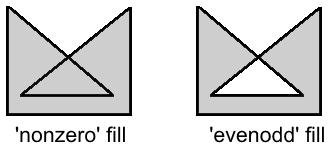
FillRule
Values: FILL_EVENODD, FILL_NONZERO.
This enum determines which regions of a self-intersecting shape should be considered to be inside the shape, and thus be filled.
Arrowhead
Values: ARROW_NONE, ARROW_SIMPLE, ARROW_TRIANGLE, ARROW_BARBED.
Some figures support displaying arrowheads at one or both ends of a line. This enum determines the style of the arrowhead to be used.

Interpolation
Values: INTERPOLATION_NONE, INTERPOLATION_FAST, INTERPOLATION_BEST.
Interpolation is used for rendering an image when it is not displayed at its native resolution. This enum indicates the algorithm to be used for interpolation.
The mode none selects the “nearest neighbor” algorithm. Fast emphasizes speed, and best emphasizes quality; however, the exact choice of algorithm (bilinear, bicubic, quadratic, etc.) depends on features of the graphics library that the GUI was implemented with.
Anchor
ANCHOR_CENTER, ANCHOR_N, ANCHOR_E, ANCHOR_S, ANCHOR_W,
ANCHOR_NW, ANCHOR_NE, ANCHOR_SE, ANCHOR_SW;
ANCHOR_BASELINE_START, ANCHOR_BASELINE_MIDDLE,ANCHOR_BASELINE_END.Some figures like text and image figures are placed by specifying a single
point (position) plus an anchor mode, a value from this enum. The
anchor mode indicates which point of the bounding box of the figure should
be positioned over the specified point. For example, when using
ANCHOR_N, the figure is placed so that its top-middle point falls at
the specified point.
The last three, baseline constants are only used with text figures, and indicate that the start, middle or end of the text’s baseline is the anchor point.
Primitive Figures
Now that we know all about figures in general, we can look into the specific figure classes provided by OMNeT++.
cAbstractLineFigure
cAbstractLineFigure is the common base class for various line figures, providing line color, style, width, opacity, arrowhead and other properties for them.
Line color can be set with setLineColor(), and line width with setLineWidth(). Lines can be solid, dashed, dotted, etc.; line style can be set with setLineStyle(). The default line color is black.
Lines can be partially transparent. This property can be controlled with
setLineOpacity() that takes a double between 0 and 1: a zero
argument means fully transparent, and one means fully opaque.
Lines can have various cap styles: butt, square, round, etc., which can be selected with setCapStyle(). Join style, which is a related property, is not part of cAbstractLineFigure but instead added to specific subclasses where it makes sense.
Lines may also be augmented with arrowheads at either or both ends. Arrowheads can be selected with setStartArrowhead() and setEndArrowhead().
Transformations such as scaling or skew do affect the width of the line as it is rendered on the canvas. Whether zooming (by the user) should also affect it can be controlled by setting a flag (setZoomLineWidth()). The default is non-zooming lines.
Specifying zero for line width is currently not allowed. To hide the line,
use setVisible(false). [4]
cLineFigure
cLineFigure displays a single straight line segment. The endpoints of the line can be set with the setStart()/setEnd() methods. Other properties such as color and line style are inherited from cAbstractLineFigure.
An example that draws an arrow from (0,0) to (100,100):
cLineFigure *line = new cLineFigure("line");
line->setStart(cFigure::Point(0,0));
line->setEnd(cFigure::Point(100,50));
line->setLineWidth(2);
line->setEndArrowhead(cFigure::ARROW_BARBED);
The result:

cArcFigure
cArcFigure displays an axis-aligned arc. (To display a non-axis-aligned arc, apply a transform to cArcFigure, or use cPathFigure.) The arc’s geometry is determined by the bounding box of the circle or ellipse, and a start and end angle; they can be set with the setBounds(), setStartAngle() and setEndAngle() methods. Other properties such as color and line style are inherited from cAbstractLineFigure.
For angles, zero points east. Angles that go counterclockwise are positive, and those that go clockwise are negative.
Note
Angles are in radians in the C++ API, but in degrees when the figure is
defined in the NED file via @figure.
Here is an example that draws a blue arc with an arrowhead that goes counter-clockwise from 3 hours to 12 hours on the clock:
cArcFigure *arc = new cArcFigure("arc");
arc->setBounds(cFigure::Rectangle(10,10,100,100));
arc->setStartAngle(0);
arc->setEndAngle(M_PI/2);
arc->setLineColor(cFigure::BLUE);
arc->setEndArrowhead(cFigure::ARROW_BARBED);
The result:

cPolylineFigure
By default, cPolylineFigure displays multiple connecting straight line segments. The class stores geometry information as a sequence of points. The line may be smoothed, so the figure can also display complex curves.
The points can be set with setPoints() that takes std::vector<Point>,
or added one-by-one using addPoint(). Elements in the point list can be
read and overwritten (getPoint(), setPoint()). One can also
insert and remove points (insertPoint() and removePoint().
A smoothed line is drawn as a series of Bezier curves, which touch the start point of the first line segment, the end point of the last line segment, and the midpoints of intermediate line segments, while intermediate points serve as control points. Smoothing can be turned on/off using setSmooth().
Additional properties such as color and line style are inherited from cAbstractLineFigure. Line join style (which is not part of cAbstractLineFigure) can be set with setJoinStyle().
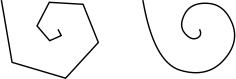
Here is an example that uses a smoothed polyline to draw a spiral:
cPolylineFigure *polyline = new cPolylineFigure("polyline");
const double C = 1.1;
for (int i = 0; i < 10; i++)
    polyline->addPoint(cFigure::Point(5*i*cos(C*i), 5*i*sin(C*i)));
polyline->move(100, 100);
polyline->setSmooth(true);
The result, with both smooth=false and smooth=true:
cAbstractShapeFigure
cAbstractShapeFigure is an abstract base class for various shapes, providing line and fill color, line and fill opacity, line style, line width, and other properties for them.
Both outline and fill are optional, they can be turned on and off independently with the setOutlined() and setFilled() methods. The default is outlined but unfilled shapes.
Similar to cAbstractLineFigure, line color can be set with setLineColor(), and line width with setLineWidth(). Lines can be solid, dashed, dotted, etc.; line style can be set with setLineStyle(). The default line color is black.
Fill color can be set with setFillColor(). The default fill color
is blue (although it is indifferent until one calls setFilled(true)).
Note
Invoking setFillColor() alone does not make the shape filled, one also needs to call setFilled(true) for that.
Shapes can be partially transparent, and opacity can be set individually
for the outline and the fill, using setLineOpacity() and
setFillOpacity(). These functions accept a double between 0
and 1: a zero argument means fully transparent, and one means fully opaque.
When the outline is drawn with a width larger than one pixel, it will be drawn symmetrically, i.e. approximately 50-50% of its width will fall inside and outside the shape. (This also means that the fill and a wide outline will partially overlap, but that is only apparent if the outline is also partially transparent.)
Transformations such as scaling or skew do affect the width of the line as it is rendered on the canvas. Whether zooming (by the user) should also affect it can be controlled by setting a flag (setZoomLineWidth()). The default is non-zooming lines.
Specifying zero for line width is currently not allowed. To hide the outline,
setOutlined(false) can be used.
Shape figures can clip the rendering of their child figures to their own
shape; this can be turned on with setClipChildren(true). See
Clipping for details.
cRectangleFigure
cRectangleFigure displays an axis-aligned rectangle with optionally rounded corners. As with all shape figures, drawing of both the outline and the fill are optional. Line and fill color, and several other properties are inherited from cAbstractShapeFigure.
The figure’s geometry can be set with the setBounds() method that takes a cFigure::Rectangle. The radii for the rounded corners can be set independently for the \(x\) and \(y\) direction using setCornerRx() and setCornerRy(), or together with setCornerRadius().
The following example draws a rounded rectangle of size 160x100, filled with a “good dark color”.
cRectangleFigure *rect = new cRectangleFigure("rect");
rect->setBounds(cFigure::Rectangle(100,100,160,100));
rect->setCornerRadius(5);
rect->setFilled(true);
rect->setFillColor(cFigure::GOOD_LIGHT_COLORS[0]);
The result:
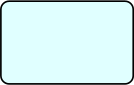
cOvalFigure
cOvalFigure displays a circle or an axis-aligned ellipse. As with all shape figures, drawing of both the outline and the fill are optional. Line and fill color, and several other properties are inherited from cAbstractShapeFigure.
The geometry is specified with the bounding box, and it can be set with the setBounds() method that takes a cFigure::Rectangle.
The following example draws a circle of diameter 120 with a wide dotted line.
cOvalFigure *circle = new cOvalFigure("circle");
circle->setBounds(cFigure::Rectangle(100,100,120,120));
circle->setLineWidth(2);
circle->setLineStyle(cFigure::LINE_DOTTED);
The result:

cRingFigure
cRingFigure displays a ring, with explicitly controllable inner/outer radii. The inner and outer circles (or ellipses) form the outline, and the area between them is filled. As with all shape figures, drawing of both the outline and the fill are optional. Line and fill color, and several other properties are inherited from cAbstractShapeFigure.
The geometry is determined by the bounding box that defines the outer circle, and the \(x\) and \(y\) radii of the inner oval. They can be set with the setBounds(), setInnerRx() and setInnerRy() member functions. There is also a utility method for setting both inner radii together, named setInnerRadius().
The following example draws a ring with an outer diameter of 50 and inner diameter of 20.
cRingFigure *ring = new cRingFigure("ring");
ring->setBounds(cFigure::Rectangle(100,100,50,50));
ring->setInnerRadius(10);
ring->setFilled(true);
ring->setFillColor(cFigure::YELLOW);

cPieSliceFigure
cPieSliceFigure displays a pie slice, that is, a section of an axis-aligned disc or filled ellipse. The outline of the pie slice consists of an arc and two radii. As with all shape figures, drawing of both the outline and the fill are optional.
Similar to an arc, a pie slice is determined by the bounding box of the full disc or ellipse, and a start and an end angle. They can be set with the setBounds(), setStartAngle() and setEndAngle() methods.
For angles, zero points east. Angles that go counterclockwise are positive, and those that go clockwise are negative.
Note
Angles are in radians in the C++ API, but in degrees when the figure is
defined in the NED file via @figure.
Line and fill color, and several other properties are inherited from cAbstractShapeFigure.
The following example draws pie slice that’s one third of a whole pie:
cPieSliceFigure *pieslice = new cPieSliceFigure("pieslice");
pieslice->setBounds(cFigure::Rectangle(100,100,100,100));
pieslice->setStartAngle(0);
pieslice->setEndAngle(2*M_PI/3);
pieslice->setFilled(true);
pieslice->setLineColor(cFigure::BLUE);
pieslice->setFillColor(cFigure::YELLOW);
The result:
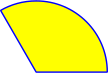
cPolygonFigure
The cPolygonFigure displays a closed polygon, which is determined by a sequence of points. The polygon can be smoothed. A smoothed polygon is drawn as a series of cubic Bezier curves, where the curves touch the midpoints of the sides, and the vertices serve as control points. Smoothing can be turned on/off using the setSmooth() method.
The points can be set using the setPoints() method, which takes a std::vector<Point>,
or added one-by-one using the addPoint() method. Elements in the point list can be
read and overwritten using the getPoint() and setPoint() methods. One can also
insert and remove points using the insertPoint() and removePoint() methods.
Like all shape figures, the outline and the fill of the polygon can be optionally drawn.
The drawing of filled self-intersecting polygons is controlled
by the fill rule, which defaults to even-odd (FILL_EVENODD), and
can be set using the setFillRule() method. The line join style can be set using
the setJoinStyle() method.
Line and fill color, and several other properties are inherited from the cAbstractShapeFigure.
Here is an example of a smoothed polygon that also demonstrates the use of the setPoints() method:
cPolygonFigure *polygon = new cPolygonFigure("polygon");
std::vector<cFigure::Point> points;
points.push_back(cFigure::Point(0, 100));
points.push_back(cFigure::Point(50, 100));
points.push_back(cFigure::Point(100, 100));
points.push_back(cFigure::Point(50, 50));
polygon->setPoints(points);
polygon->setLineColor(cFigure::BLUE);
polygon->setLineWidth(3);
polygon->setSmooth(true);
The result, with both smooth=false and smooth=true:
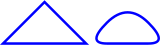
cPathFigure
The cPathFigure displays a “path”, which is a complex shape or line modeled after SVG paths. A path may consist of any number of straight line segments, Bezier curves, and arcs. The path can be disjoint as well. Closed paths may be filled. The drawing of filled self-intersecting polygons is controlled by the fill rule property. Line and fill color, and several other properties are inherited from cAbstractShapeFigure.
A path, when given as a string, looks like this one that draws a triangle:
M 150 0 L 75 200 L 225 200 Z
It consists of a sequence of commands (M for moveto, L for lineto, etc.) that are each followed by numeric parameters (except Z). All commands can be expressed with lowercase letters, too. A capital letter means that the target point is given with absolute coordinates, while a lowercase letter means they are given relative to the target point of the previous command.
The cPathFigure can accept the path in string form (setPath()), or one can assemble the path with a series of method calls like addMoveTo(). The path can be cleared with the clearPath() method.
The commands with argument lists and the corresponding add methods are:
M x y: move; addMoveTo(), addMoveRel()
L x y: line; addLineTo(), addLineRel()
H x: horizontal line; addHorizontalLineTo(), addHorizontalLineRel()
V y: vertical line; addVerticalLineTo(), addVerticalLineRel()
A rx ry phi largeArc sweep x y: arc; addArcTo(), addArcRel()
Q x1 y1 x y: curve; addCurveTo(), addCurveRel()
T x y: smooth curve; addSmoothCurveTo(), addSmoothCurveRel()
C x1 y1 x2 y2 x y: cubic Bezier curve; addCubicBezierCurveTo(), addCubicBezierCurveRel()
S x1 y1 x y: smooth cubic Bezier curve; addSmoothCubicBezierCurveTo(), addSmoothCubicBezierCurveRel()
Z: close path; addClosePath()
In the parameter lists, \((x,y)\) are the target points (substitute \((dx,dy)\) for the lowercase, relative versions.) For the Bezier curves, \(x1,y1\) and \((x2,y2)\) are the control points. For the arc, \(rx\) and \(ry\) are the radii of the ellipse, \(phi\) is a rotation angle in degrees for the ellipse, and \(largeArc\) and \(sweep\) are both booleans (0 or 1) that select which portion of the ellipse should be taken. [5]
No matter how the path was created, the string form can be obtained with the getPath() method, and the parsed form with the getNumPathItems(), and getPathItem(k) methods. The latter returns a pointer to a cPathFigure::PathItem, which is a base class with subclasses for every item type.
The line join style, cap style (for open subpaths), and fill rule (for closed subpaths) can be set with the setJoinStyle(), setCapStyle(), and setFillRule() methods.
The cPathFigure has one more property, an \((dx,dy)\) offset, which exists to simplify the implementation of the move() method. The offset causes the figure to be translated by the given amount for drawing. For other figure types, move() directly updates the coordinates, so it is effectively a wrapper for setPosition() or setBounds(). For path figures, implementing move() so that it updates every path item would be cumbersome and potentially also confusing for users. Instead, move() updates the offset. The offset can be set with setOffset().
In the first example, the path is given as a string:
cPathFigure *path = new cPathFigure("path");
path->setPath("M 0 150 L 50 50 Q 20 120 100 150 Z");
path->setFilled(true);
path->setLineColor(cFigure::BLUE);
path->setFillColor(cFigure::YELLOW);
The second example creates the equivalent path programmatically.
cPathFigure *path2 = new cPathFigure("path");
path2->addMoveTo(0,150);
path2->addLineTo(50,50);
path2->addCurveTo(20,120,100,150);
path2->addClosePath();
path2->setFilled(true);
path2->setLineColor(cFigure::BLUE);
path2->setFillColor(cFigure::YELLOW);
The result:
cAbstractTextFigure
The cAbstractTextFigure is an abstract base class for figures that display potentially multi-line text.
The location of the text on the canvas is determined jointly by a
position and an anchor. The anchor tells how to
place the text relative to the positioning point. For example,
if the anchor is ANCHOR_CENTER, then the text is centered on the point;
if the anchor is ANCHOR_N, then the text will be drawn so that its top
center point is at the positioning point. The values
ANCHOR_BASELINE_START, ANCHOR_BASELINE_MIDDLE,
ANCHOR_BASELINE_END refer to the beginning, middle, and end of the
baseline of the first line of the text as an anchor point. The member
functions to set the positioning point and the anchor are
setPosition() and setAnchor(). The anchor defaults to
ANCHOR_CENTER.
The font can be set with the setFont() member function, which takes
cFigure::Font, a class that encapsulates typeface, font style, and
size. The color can be set with setColor(). The displayed text can
also be partially transparent. This is controlled with the setOpacity()
member function, which accepts a double in the range of \([0,1]\), where \(0\) means
fully transparent (invisible), and \(1\) means fully opaque.
It is also possible to have a partially transparent “halo” displayed around the text. The halo improves readability when the text is displayed over a background that has a similar color to the text or when it overlaps with other text items. The halo can be turned on with setHalo().
cTextFigure
The cTextFigure displays text which is affected by zooming and transformations. The font, color, position, anchoring, and other properties are inherited from cAbstractTextFigure.
The following example displays a text in dark blue with a font size of 12 points in bold Arial font.
cTextFigure *text = new cTextFigure("text");
text->setText("This is some text.");
text->setPosition(cFigure::Point(100,100));
text->setAnchor(cFigure::ANCHOR_BASELINE_MIDDLE);
text->setColor(cFigure::Color("#000040"));
text->setFont(cFigure::Font("Arial", 12, cFigure::FONT_BOLD));
The result:

cLabelFigure
The cLabelFigure displays text that is unaffected by zooming or transformations, except its position. The font, color, position, anchoring, and other properties are inherited from cAbstractTextFigure. The angle of the label can be set with the setAngle() method. A zero angle means horizontal (unrotated) text. Positive values rotate the text counterclockwise, while negative values rotate the text clockwise.
Note
Angles are in radians in the C++ API but in degrees when the figure is defined
in the NED file via @figure.
The following example displays a label in Courier New with the default size, slightly transparent.
cLabelFigure *label = new cLabelFigure("label");
label->setText("This is a label.");
label->setPosition(cFigure::Point(100,100));
label->setAnchor(cFigure::ANCHOR_NW);
label->setFont(cFigure::Font("Courier New"));
label->setOpacity(0.9);
The result:

cAbstractImageFigure
The cAbstractImageFigure is an abstract base class for image figures.
The location of the image on the canvas is determined jointly by a
position and an anchor. The anchor tells how to
place the image relative to the positioning point. For example,
if the anchor is ANCHOR_CENTER, the image is centered on the point;
if the anchor is ANCHOR_N, the image will be drawn so that its top
center point is at the positioning point. The member functions to set the
positioning point and the anchor are setPosition() and
setAnchor(). The anchor defaults to ANCHOR_CENTER.
By default, the figure’s width and height will be taken from the image’s
dimensions in pixels. This can be overridden with the setWidth() and
setHeight() methods, causing the image to be scaled. Using
setWidth(0) or setHeight(0) will reset the default (automatic) width
and height.
One can choose from several interpolation modes that control how the image
is rendered when it is not drawn in its natural size. The interpolation mode
can be set with the setInterpolation() method, which defaults to
INTERPOLATION_FAST.
Images can be tinted; this feature is controlled by a tint color and a tint amount, which is a real number in the range of \([0,1]\). They can be set with the setTintColor() and setTintAmount() methods, respectively.
Images may also be partially transparent, which is controlled by the opacity property, which is also a real number in the range of \([0,1]\). Opacity can be set with the setOpacity() method. The rendering process will combine this property with the transparency information contained within the image, i.e. the alpha channel.
cImageFigure
The cImageFigure displays an image, typically an icon or a background image, loaded from the OMNeT++ image path. Positioning and other properties are inherited from cAbstractImageFigure. Unlike cIconFigure, the cImageFigure fully obeys transforms and zoom.
The following example displays a map:
cImageFigure *image = new cImageFigure("map");
image->setPosition(cFigure::Point(0,0));
image->setAnchor(cFigure::ANCHOR_NW);
image->setImageName("maps/europe");
image->setWidth(600);
image->setHeight(500);
cIconFigure
The cIconFigure displays a non-zooming image, loaded from the OMNeT++ image path. Positioning and other properties are inherited from cAbstractImageFigure.
The cIconFigure is not affected by transforms or zoom, except its position. It can still be resized, though, via the setWidth() and setHeight() methods.
The following example displays an icon similar to the way the
"i=block/sink,gold,30" display string tag would, and makes it slightly
transparent:
cIconFigure *icon = new cIconFigure("icon");
icon->setPosition(cFigure::Point(100,100));
icon->setImageName("block/sink");
icon->setTintColor(cFigure::Color("gold"));
icon->setTintAmount(0.6);
icon->setOpacity(0.8);
The result:

cPixmapFigure
The cPixmapFigure displays a user-defined raster image. A pixmap figure may be used to display e.g. a heat map. Support for scaling and various interpolation modes are useful here. Positioning and other properties are inherited from cAbstractImageFigure.
A pixmap itself is represented by the cFigure::Pixmap class.
The cFigure::Pixmap stores a rectangular array of 32-bit RGBA pixels, and allows pixels to be manipulated directly. The size (\(width \times height\)) as well as the default fill can be specified in the constructor. The pixmap can be resized (i.e. pixels added/removed at the right and/or bottom) using setSize(), and it can be filled with a color using fill(). Pixels can be directly accessed using pixel(x,y).
A pixel is returned as type cFigure::RGBA, which is a convenience
struct that, in addition to having the four public uint8_t fields
(red, green, blue, alpha), is augmented with several
utility methods.
Many Pixmap and RGBA methods accept or return cFigure::Color and opacity, converting between them and RGBA. (Opacity is a \([0,1]\) real number that is mapped to the 0..255 alpha channel. \(0\) means fully transparent, and \(1\) means fully opaque.)
One can set up and manipulate the image that cPixmapFigure displays in two ways. First, one can create and fill a cFigure::Pixmap separately, and set it on cPixmapFigure using setPixmap(). This will overwrite the figure’s internal pixmap instance that it displays. The second way is to utilize cPixmapFigure’s methods such as setPixmapSize(), fill(), setPixel(), setPixelColor(), setPixelOpacity(), etc. that delegate to the internal pixmap instance.
The following example displays a small heat map by manipulating the transparency of the pixels. The 9-by-9 pixel image is stretched to 100 units each direction on the screen.
cPixmapFigure *pixmapFigure = new cPixmapFigure("pixmap");
pixmapFigure->setPosition(cFigure::Point(100,100));
pixmapFigure->setSize(100, 100);
pixmapFigure->setPixmapSize(9, 9, cFigure::BLUE, 1);
for (int y = 0; y < pixmapFigure->getPixmapHeight(); y++) {
    for (int x = 0; x < pixmapFigure->getPixmapWidth(); x++) {
        double opacity = 1 - sqrt((x-4)*(x-4) + (y-4)*(y-4))/4;
        if (opacity < 0) opacity = 0;
        pixmapFigure->setPixelOpacity(x, y, opacity);
    }
}
pixmapFigure->setInterpolation(cFigure::INTERPOLATION_FAST);
The result, both with interpolation=NONE and interpolation=FAST:
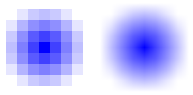
cGroupFigure
The cGroupFigure is for the sole purpose of grouping its children. It has no visual appearance. The usefulness of a group figure comes from the fact that elements of a group can be hidden or shown together, and also transformations are inherited from parent to child. Thus, children of a group can be moved, scaled, rotated, etc. together by updating the group’s transformation matrix.
The following example creates a group with two subfigures, then moves and rotates them as one unit.
cGroupFigure *group = new cGroupFigure("group");

cRectangleFigure *rect = new cRectangleFigure("rect");
rect->setBounds(cFigure::Rectangle(-50,0,100,40));
rect->setCornerRadius(5);
rect->setFilled(true);
rect->setFillColor(cFigure::YELLOW);

cLineFigure *line = new cLineFigure("line");
line->setStart(cFigure::Point(-80,50));
line->setEnd(cFigure::Point(80,50));
line->setLineWidth(3);

group->addFigure(rect);
group->addFigure(line);
group->translate(100, 100);
group->rotate(M_PI/6, 100, 100);
The result:
cPanelFigure
The cPanelFigure is similar to cGroupFigure in that it is also intended for grouping its children and has no visual appearance of its own. However, it has a special behavior regarding transformations and especially zooming.
The cPanelFigure sets up an axis-aligned, unscaled coordinate system for its children, canceling the effect of any transformation (scaling, rotation, etc.) inherited from ancestor figures. This allows for pixel-based positioning of children and makes them immune to zooming.
Unlike cGroupFigure, which has its own position attribute, cPanelFigure uses two points for positioning, a position and an anchor point. The position is interpreted in the coordinate system of the panel figure’s parent, while the anchor point is interpreted in the coordinate system of the panel figure itself. To place the panel figure on the canvas, the panel’s anchor point is mapped to the position in the parent.
Setting a transformation on the panel figure itself allows for rotation, scaling, and skewing of its children. The anchor point is also affected by this transformation.
The following example demonstrates the cPanelFigure behavior. It creates a normal group figure as the parent for the panel and sets up a skewed coordinate system on it. A reference image is also added to it, to make the effect of skew visible. The panel figure is also added to it as a child. The panel contains an image (showing the same icon as the reference image) and a border around it.
cGroupFigure *layer = new cGroupFigure("parent");
layer->skewx(-0.3);

cImageFigure *referenceImg = new cImageFigure("ref");
referenceImg->setImageName("block/broadcast");
referenceImg->setPosition(cFigure::Point(200,200));
referenceImg->setOpacity(0.3);
layer->addFigure(referenceImg);

cPanelFigure *panel = new cPanelFigure("panel");

cImageFigure *img = new cImageFigure("img");
img->setImageName("block/broadcast");
img->setPosition(cFigure::Point(0,0));
panel->addFigure(img);

cRectangleFigure *border = new cRectangleFigure("border");
border->setBounds(cFigure::Rectangle(-25,-25,50,50));
border->setLineWidth(3);
panel->addFigure(border);

layer->addFigure(panel);
panel->setAnchorPoint(cFigure::Point(0,0));
panel->setPosition(cFigure::Point(210,200));
The screenshot shows the result at an approximate 4x zoom level. The large semi-transparent image is the reference image, and the smaller one is the image within the panel figure. Note that neither the skew nor the zoom has affected the panel figure’s children.
Compound Figures
Any graphics can be built using primitive (i.e., elementary) figures alone. However, when the graphical presentation of a simulation grows complex, it is often convenient to be able to group certain figures and treat them as a single unit. For example, although a bar chart can be displayed using several independent rectangles, lines, and text items, there are clear benefits to being able to handle them together as a single bar chart object.
Compound figures are cFigure subclasses that
are made up of several figures themselves, but can be instantiated
and manipulated as a single figure. Compound figure classes
can be used from C++ code like normal figures, and can also
be instantiated from @figure properties.
Compound figure classes usually subclass from cGroupFigure. The class would typically maintain pointers to its subfigures in class members and have methods (getters, setters, etc.) that operate on the subfigures.
To enable the new C++ class to be used with @figure,
it needs to be registered using the Register_Figure() macro.
The macro takes two arguments: the type name by which the figure
is known to @figure (the string to be used with the type property key),
and the C++ class name. For example, if you want to instantiate
a class named FooFigure with @figure[…](type=foo;…),
you need to add the following line to the C++ source:
Register_Figure("foo", FooFigure);
If the figure should be able to take values from @figure properties,
the class needs to override the parse(cProperty*) method,
and possibly also getAllowedPropertyKeys(). We recommend
examining the code of the figure classes built into OMNeT++ for
implementation hints.
Self-Refreshing Figures
Most figures are entirely passive objects. When they need to be moved or updated during the course of the simulation, there must be an active component in the simulation that does it for them. Usually, it is the refreshDisplay() method of some simple module (or modules) that contain the code that updates various properties of the figures.
However, certain figures can benefit from being able to refresh themselves
during the simulation. For example, consider a compound figure (see
previous section) that displays a line chart, which is continually
updated with new data as the simulation progresses. The LineChartFigure
class may contain an addDataPoint(x,y) method, which is called
from other parts of the simulation to add new data to the chart.
The question is when to update the subfigures that make up the chart: the
lines, axis ticks and labels, etc. It is clearly not very efficient
to do it in every addDataPoint(x,y) call, especially when the
simulation is running in Express mode when the screen is not refreshed
very often. Luckily, our hypothetical LineChartFigure class
can do better and only refresh its subfigures when it matters, i.e.,
when the result can actually be seen in the GUI. To do that, the class
needs to override cFigure’s refreshDisplay() method and
place the subfigure updating code there.
Figure classes that override refreshDisplay() to refresh their own contents are called self-refreshing figures. Self-refreshing figures as a feature are available since OMNeT++ version 5.1.
refreshDisplay() is declared in cFigure as:
virtual void refreshDisplay();
The default implementation does nothing.
Like cModule’s refreshDisplay(), cFigure’s refreshDisplay() is invoked only under graphical user interfaces (Qtenv), and right before display updates. However, it is only invoked for figures on canvases that are currently displayed. This makes it possible for canvases that are never viewed to have zero refresh overhead.
Since cFigure’s refreshDisplay() is only invoked when the canvas is visible, it should only be used to update local state, i.e. only local members and local subfigures. The code should certainly not access other canvases, let alone change the state of the simulation.
Figures with Custom Renderers
In rare cases, it might be necessary to create figure types where the rendering is entirely custom and not based on already existing figures. The difficulty arises from the point that figures are only data storage classes. Actual drawing takes place in the GUI library such as Qtenv. Thus, in addition to writing the new figure class, one also needs to extend Qtenv with the corresponding rendering code. We won’t go into full details on how to extend Qtenv here, just give you a few pointers in case you need it.
In Qtenv, rendering is done with the help of figure renderer
classes that have a class hierarchy roughly parallel to the
cFigure inheritance tree. The base classes are incidentally called
FigureRenderer. How figure renderers do their job may be different in
various graphical runtime interfaces. In Qtenv, they create and manipulate
QGraphicsItems on a QGraphicsView. To render a
new figure type, one needs to create the appropriate figure renderer
classes for Qtenv.
The names of the renderer classes are provided by the figures themselves,
by their getRendererClassName() methods. For example,
cLineFigure’s getRendererClassName() returns
LineFigureRenderer. Qtenv qualifies that with its own namespace and
looks for a registered class named
omnetpp::qtenv::LineFigureRenderer. If such a class exists and is a
Qtenv figure renderer (the appropriate dynamic_cast succeeds), an
instance of that class will be used to render the figure. Otherwise, an
error message will be issued.
3D Visualization
Introduction
OMNeT++ enables advanced 3D visualization for simulation models. 3D visualization is useful for a wide range of simulations, including mobile wireless networks, transportation models, factory floorplan simulations, and more. It allows users to visualize terrain, roads, urban street networks, indoor environments, satellites, and more. The 3D scene can also be augmented with various annotations. For wireless network simulations, for example, users can create a scene that displays not only the faithful representation of the physical world, but also the transmission range of wireless nodes, their connectivity graph, various statistics, individual wireless transmissions, and traffic intensity.
In OMNeT++, 3D visualization is completely separate from display string-based and canvas-based visualization. The scene appears on a separate GUI area.
OMNeT++’s 3D visualization is based on the open-source OpenSceneGraph and osgEarth libraries. These libraries provide high-level functionality, such as the ability to use 3D model files directly, access and render online map and satellite imagery data sources, and more.
OpenSceneGraph and osgEarth
OpenSceneGraph (openscenegraph.org), or OSG for short, is the base library. According to their website:
“OpenSceneGraph is an open-source high-performance 3D graphics toolkit used by application developers in fields such as visual simulation, games, virtual reality, scientific visualization, and modeling. Written entirely in standard C++ and OpenGL, it runs on all Windows platforms, OS X, GNU/Linux, IRIX, Solaris, HP-UX, AIX, and FreeBSD operating systems. OpenSceneGraph is now well established as the world-leading scene graph technology, used widely in the vis-sim, space, scientific, oil-gas, games, and virtual reality industries.”
On the other hand, osgEarth (osgearth.org) is a geospatial SDK and terrain engine built on top of OpenSceneGraph, not unlike Google Earth. It has many attractive features:
It can use various street map providers, satellite imaging providers, and elevation data sources, both online and offline.
Data from online sources can be exported into a file suitable for offline use.
The scene can be annotated with various types of graphical objects.
It includes conversion between various geographical coordinate systems.
In , osgEarth can be very useful for simulations involving maps, terrain, or satellites.
The OMNeT++ API for OpenSceneGraph
For 3D visualization, OMNeT++ essentially exposes the OpenSceneGraph API. Users need to assemble an OSG scene graph in the model and give it to OMNeT++ for display. The scene graph can be updated at runtime, and any changes will be reflected in the display.
Note
What is a scene graph? A scene graph is a tree-like directed graph data structure that describes a 3D scene. The root node represents the entire virtual world. The world is then broken down into a hierarchy of nodes representing spatial groupings of objects, settings of the position of objects, animations of objects, or definitions of logical relationships between objects. The leaves of the graph represent the physical objects themselves, the drawable geometry, and their material properties.
Once a scene graph has been built by the simulation model, it needs to be given to a cOsgCanvas object to let the OMNeT++ GUI know about it. cOsgCanvas wraps a scene graph, along with hints for the GUI on how to best display the scene, such as the default camera position. In the GUI, users can use the mouse to manipulate the camera to view the scene from various angles and distances, look at various parts of the scene, and so on.
It is important to note that the simulation model can only manipulate the scene graph and cannot directly access the viewer in the GUI. This is due to a technical reason. The viewer may not even exist or may be displaying a different scene graph when the model tries to access it. The model may even be running under a non-GUI user interface (e.g., Cmdenv) where a viewer is not part of the program. The viewer can only be influenced through viewer hints in cOsgCanvas.
Creating and Accessing cOsgCanvas Objects
Every module has a built-in (default) cOsgCanvas, which can be accessed using the getOsgCanvas() method of cModule. For example, a toplevel submodule can get the network’s OSG canvas using the following line:
cOsgCanvas *osgCanvas = getParentModule()->getOsgCanvas();
Additional cOsgCanvas instances can be created using the new keyword:
cOsgCanvas *osgCanvas = new cOsgCanvas("scene2");
cOsgCanvas and Scene Graphs
Once a scene graph has been assembled, it can be set on the cOsgCanvas using the setScene() method.
osg::Node *scene = ...
osgCanvas->setScene(scene);
Subsequent changes in the scene graph will be automatically reflected in the visualization. There is no need to call setScene() again or let OMNeT++ know about the changes in any other way.
Viewer Hints
There are several hints that the 3D viewer can take into account when displaying the scene graph. It is important to note that these hints are only suggestions and the viewer may choose to ignore them. Additionally, users can interactively override these hints using the mouse, context menu, hotkeys, or any other means.
Viewer style: The viewer style can be set using the setViewerStyle() method. It determines the default hints for a scene. The choices are
STYLE_GENERIC, which should be set for generic (non-osgEarth) scenes (default), andSTYLE_EARTHfor osgEarth scenes. As a rule of thumb,STYLE_EARTHshould only be used when the model is loading.earthfiles.Camera manipulators: The OSG viewer makes use of camera manipulators, which map mouse and keyboard gestures to camera movement. Users can specify a manipulator using the setCameraManipulatorType() method. Several camera manipulators are available:
CAM_TERRAIN, which is suitable for flying above an object or terrain;CAM_OVERVIEW, which is similar to the terrain manipulator but does not allow rolling or looking up (users can only see the object from above);CAM_TRACKBALL, which allows unrestricted movement centered around an object; andCAM_EARTH, which should be used when viewing the whole Earth is useful (e.g., modeling satellites). By default, the manipulator is automatically chosen (CAM_AUTO) based on the viewer style (CAM_OVERVIEWorCAM_EARTH).Scene rendering: Users can set the default background color for non-osgEarth scenes using the setClearColor() method. It is also possible to set the distances of the near and far clipping planes using the setZNear() and setZFar() methods. These distances determine the range within which objects in the scene will be displayed. Everything in the scene will be truncated to fit between these two planes. If parts of objects are being clipped away from the scene, users can try adjusting these values. [6]
Viewpoint and field of view: Users can set default viewpoints using the setGenericViewpoint() method by specifying the camera position, focal point, and “up” direction as parameters. For osgEarth scenarios, users can use the setEarthViewpoint() method to set the location of the observer and focal point using geographic coordinates. It is also possible to set the camera’s field of view angle using the setFieldOfViewAngle() method.
Here is an example code fragment that sets some viewer hints:
osgCanvas->setViewerStyle(cOsgCanvas::STYLE_GENERIC);
osgCanvas->setCameraManipulatorType(cOsgCanvas::CAM_OVERVIEW);
osgCanvas->setClearColor(cOsgCanvas::Color("skyblue"));
osgCanvas->setGenericViewpoint(cOsgCanvas::Viewpoint(
        cOsgCanvas::Vec3d(20, -30, 30), // observer
        cOsgCanvas::Vec3d(30, 20, 0),   // focal point
        cOsgCanvas::Vec3d(0, 0, 1)));   // UP
Making Nodes Selectable
If a 3D object in the scene represents a C++ object in the simulation, it would often be convenient to select that object for inspection by clicking on it with the mouse.
OMNeT++ provides a wrapper node, cObjectOsgNode, that associates its children with a particular OMNeT++ object (a descendant of cObject), making them selectable in the 3D viewer. To use cObjectOsgNode, create a new instance and add your node(s) as children:
auto objectNode = new cObjectOsgNode(myModule);
objectNode->addChild(myNode);
Note
It is important to ensure that the OMNeT++ object exists as long as the wrapper node exists. Otherwise, clicking child nodes with the mouse may result in a crash.
Finding Resources
Often, 3D visualizations need to load external resources from disk, such as images or 3D models. By default, OSG tries to load these files from the current working directory unless an absolute path is given. However, it is often more convenient to load files from the folder of the current OMNeT++ module, the folder of the ini file, or the image path. To accomplish this, OMNeT++ provides a resolveResourcePath() method.
The resolveResourcePath() method of modules and channels accepts a file name (or relative path) as input and looks into a number of convenient locations to find the file. The search folders include the current working directory, the folder of the main ini file, and the folder of the NED file that defined the module or channel. If the resource is found, the function returns the full path; otherwise, it returns an empty string.
The function also looks into folders on the NED path and the image path, i.e.,
the roots of the NED and image folder trees. These search locations allow users
to load files using full NED package names (but using slashes instead of dots),
or access an icon with its full name (e.g., block/sink).
Here is an example that attempts to load a car.osgb model file:
std::string fileLoc = resolveResourcePath("car.osgb");
if (fileLoc == "")
    throw cRuntimeError("car.osgb not found");
auto node = osgDB::readNodeFile(fileLoc); // use the resolved path
Conditional Compilation
OSG and osgEarth are optional in OMNeT++ and may not be available in all installations. However, simulation models should still compile even if the particular OMNeT++ installation does not contain the OSG and osgEarth libraries. This can be achieved using conditional compilation.
OMNeT++ detects the OSG and osgEarth libraries and defines the WITH_OSG
macro if they are present. OSG-specific code should be surrounded by
#ifdef WITH_OSG.
Here is an example:
...
#ifdef WITH_OSG
#include <osgDB/ReadFile>
#endif

void DemoModule::initialize()
{
#ifdef WITH_OSG
    cOsgCanvas *osgCanvas = getParentModule()->getOsgCanvas();
    osg::Node *scene = ... // assemble scene graph here
    osgCanvas->setScene(scene);
    osgCanvas->setClearColor(cOsgCanvas::Color(0,0,64)); // hint
#endif
}
Using Additional Libraries
OSG and osgEarth consist of several libraries. By default, OMNeT++ links
simulations with only a subset of these libraries, including osg,
osgGA, osgViewer, osgQt, osgEarth, and
osgEarthUtil. If additional OSG and osgEarth libraries are needed, they
must be linked to the model as well. To link these libraries, add the following
code fragment to the makefrag file of the project:
ifneq ($(OSG_LIBS),)
LIBS += $(OSG_LIBS) -losgDB -losgAnimation ... # additional OSG libs
endif
ifneq ($(OSGEARTH_LIBS),)
LIBS += $(OSGEARTH_LIBS) -losgEarthFeatures -losgEarthSymbology ...
endif
The ifneq() statements ensure that LIBS is only updated if OMNeT++
has detected the presence of OSG/osgEarth.
Using OSG
OpenScenegraph is a large library with 16+ namespaces and 40+ osg::Node subclasses. Due to size constraints, it is not possible to fully document it here. Instead, we have provided some practical advice and useful code snippets to help users get started. For more information, please refer to the openscenegraph.org website, dedicated OpenSceneGraph books (some of which are freely available), and other online resources. We have included a list of OSG-related resources at the end of this chapter.
Loading Models
To display a 3D model in the canvas of a compound module, an osg::Node must be provided as the root of the scene.
One method of obtaining such a Node is to load it from a file containing
the model. This can be done using the osgDB::readNodeFile() method (or
one of its variants). The method takes a string as an argument and, based on the
protocol specification and extensions, finds a suitable loader for the file. It
then loads the file and returns a pointer to the newly created
osg::Node instance.
The returned node can be set as the scene of the canvas for display using the setScene() method. Here is an example:
osg::Node *model = osgDB::readNodeFile("model.osgb");
getParentModule()->getOsgCanvas()->setScene(model);
Note
Where to get model files: While OpenSceneGraph recognizes and can load a wide range of formats, many 3D modeling tools can export the edited scene or part of it in OSG’s native file format (osgt) with the help of exporter plugins. One such plugin for Blender has been used to develop some of the OSG demos for OMNeT++, and it has proven to be reliable.
OSG also provides support for “pseudo loaders” that allow for basic operations to be performed on loaded models. These operations are specified by appending parameters to the file name upon loading. For example:
*.cow[*].modelURL = "cow.osgb.2.scale.0,0,90.rot.0,0,-15e-1.trans"
This line scales the original cow model in cow.osgb to 200%, rotates it
90 degrees around the Z-axis, and translates it 1.5 units downwards. The
floating-point values are represented in scientific notation to prevent the decimal
points or commas from causing conflicts with operator or parameter separators.
Note that these modifiers operate directly on the model data and are independent of any subsequent dynamic transformations applied to the node when it is placed in the scene. For further information, refer to the OSG knowledge base.
Creating Shapes
Shapes can also be built programmatically using the osg::Geode, osg::ShapeDrawable, and osg::Shape classes.
To create a shape, start by creating an osg::Shape. The osg::Shape class is abstract and has several subclasses, such as osg::Box, osg::Sphere, osg::Cone, osg::Cylinder, and osg::Capsule. This object represents the abstract definition of the shape and cannot be rendered on its own. To render the shape, create an osg::ShapeDrawable for it. However, an osg::ShapeDrawable by itself cannot be added to the scene as it is not an osg::Node. To add it to the scene, the osg::ShapeDrawable must be added to an osg::Geode (a “geometry node”). Finally, add the osg::Geode to the scene.
For example, to create a cone shape and add it to the scene:
auto cone = new osg::Cone(osg::Vec3(0, 0, -coneRadius*0.75),
                          coneHeight, coneRadius);
auto coneDrawable = new osg::ShapeDrawable(cone);
auto coneGeode = new osg::Geode;
coneGeode->addDrawable(coneDrawable);
locatorNode->addChild(coneGeode);
Note that the same osg::Shape instance can be used to create multiple osg::ShapeDrawables, and a single osg::ShapeDrawable can be added to multiple osg::Geodes to display it in multiple places or sizes in the scene. This can improve rendering performance.
Placing and Orienting Models in a Scene
Models can be positioned and oriented by making them children of an osg::PositionAttitudeTransform. This node provides methods to set the position, orientation, and scale of its children. Orientation is done using quaternions (osg::Quat). To construct a quaternion, specify an axis of rotation and a rotation angle around the axis.
For example, to position and orient a node:
osg::Node *objectNode = ...;
auto transformNode = new osg::PositionAttitudeTransform();
transformNode->addChild(objectNode);
transformNode->setPosition(osg::Vec3d(x, y, z));
double heading = ...; // in radians
transformNode->setAttitude(osg::Quat(heading, osg::Vec3d(0, 0, 1)));
Adding Labels and Annotations
OSG allows the display of text or image labels in the scene. Labels are rotated to be always parallel to the screen and scaled to appear in a constant size. Here is an example of creating and displaying a label relative to a node:
First, create the label:
auto label = new osgText::Text();
label->setCharacterSize(18);
label->setBoundingBoxColor(osg::Vec4(1.0, 1.0, 1.0, 0.5)); // RGBA
label->setColor(osg::Vec4(0.0, 0.0, 0.0, 1.0)); // RGBA
label->setAlignment(osgText::Text::CENTER_BOTTOM);
label->setText("Hello World");
label->setDrawMode(osgText::Text::FILLEDBOUNDINGBOX | osgText::Text::TEXT);
Alternatively, a textured rectangle with an image can be used:
auto image = osgDB::readImageFile("myicon.png");
auto texture = new osg::Texture2D();
texture->setImage(image);
auto icon = osg::createTexturedQuadGeometry(osg::Vec3(0.0, 0.0, 0.0),
    osg::Vec3(image->s(), 0.0, 0.0), osg::Vec3(0.0, image->t(), 0.0),
    0.0, 0.0, 1.0, 1.0);
icon->getOrCreateStateSet()->setTextureAttributeAndModes(0, texture);
icon->getOrCreateStateSet()->setMode(GL_DEPTH_TEST, osg::StateAttribute::ON);
If the image has transparent parts, the following lines should be added: [7]
icon->getOrCreateStateSet()->setMode(GL_BLEND, osg::StateAttribute::ON);
icon->getOrCreateStateSet()->setRenderingHint(osg::StateSet::TRANSPARENT_BIN);
The icon and/or label needs an osg::Geode to be placed in the scene. It is advisable to disable lighting for the label.
auto geode = new osg::Geode();
geode->getOrCreateStateSet()->setMode(GL_LIGHTING,
            osg::StateAttribute::OFF | osg::StateAttribute::OVERRIDE);
double labelSpacing = 2;
label->setPosition(osg::Vec3(0.0, labelSpacing, 0.0));
geode->addDrawable(label);
geode->addDrawable(icon);
The osg::Geode should be made a child of an osg::AutoTransform, which applies the correct transformations for the desired label-like behavior:
auto autoTransform = new osg::AutoTransform();
autoTransform->setAutoScaleToScreen(true);
autoTransform->setAutoRotateMode(osg::AutoTransform::ROTATE_TO_SCREEN);
autoTransform->addChild(geode);
The autoTransform can now be made a child of the modelToTransform
and moved with it. Alternatively, both can be added to a new osg::Group
as siblings and handled together.
We want the label to appear relative to an object called modelNode.
One way would be to make autoTransform the child of modelNode,
but here we rather place both of them under an osg::Group. The group should
be inserted
auto modelNode = ... ;
auto group = new osg::Group();
group->addChild(modelNode);
group->addChild(autoTransform);
To place the label above the object, we set its position to \((0,0,z)\), where \(z\) is the radius of the object’s bounding sphere.
auto boundingSphere = modelNode->getBound();
autoTransform->setPosition(osg::Vec3d(0.0, 0.0, boundingSphere.radius()));
Drawing Lines
To draw a line between two points in the scene, create a osg::Vec3Array to store the points, an osg::DrawArrays to specify the part of the array to be drawn, and an osg::Geometry to connect them.
auto vertices = new osg::Vec3Array();
vertices->push_back(osg::Vec3(begin_x, begin_y, begin_z));
vertices->push_back(osg::Vec3(end_x, end_y, end_z));

auto drawArrays = new osg::DrawArrays(osg::PrimitiveSet::LINE_STRIP);
drawArrays->setFirst(0);
drawArrays->setCount(vertices->size());

auto geometry = new osg::Geometry();
geometry->setVertexArray(vertices);
geometry->addPrimitiveSet(drawArrays);
The resulting osg::Geometry must be added to an osg::Geode (geometry node), which makes it possible to add it to the scene.
auto geode = new osg::Geode();
geode->addDrawable(geometry);
To change the visual properties of the line, modify the osg::StateSet of the osg::Geometry. For example, to change the line width:
float width = ...;
auto stateSet = geode->getOrCreateStateSet();
auto lineWidth = new osg::LineWidth();
lineWidth->setWidth(width);
stateSet->setAttributeAndModes(lineWidth, osg::StateAttribute::ON);
Because of how osg::Geometry is rendered, the specified line width will always be constant on the screen (measured in pixels), and will not vary based on the distance from the camera. To achieve that effect, a long and thin osg::Cylinder could be used instead.
It is recommended to set an appropriate osg::Material to control the color of the line. Additionally, disabling lighting is advisable to ensure consistent colors regardless of the viewing angle. [8]
auto material = new osg::Material();
osg::Vec4 colorVec(red, green, blue, opacity); // RGBA, all between 0.0 and 1.0
material->setAmbient(Material::FRONT_AND_BACK, colorVec);
material->setDiffuse(Material::FRONT_AND_BACK, colorVec);
material->setAlpha(Material::FRONT_AND_BACK, opacity);
stateSet->setAttribute(material);
stateSet->setMode(GL_LIGHTING,
            osg::StateAttribute::OFF | osg::StateAttribute::OVERRIDE);
How to Organize a Scene
Regardless of how the scene has been constructed, it is always important to keep track of the relationship between individual nodes in the scene graph. This is because any modification made to an osg::Node is by default propagated to all of its children, including transformations, render state variables, and other flags.
For simple scenes, having an osg::Group as the root node and making every other object a direct child of it can be sufficient. This simplifies the scene and avoids unexpected issues with state inheritance. However, for more complex scenes, it is advisable to follow the logical hierarchy of the displayed objects in the scene graph.
Once the desired object has been created and added to the scene, it can be easily moved and oriented to represent the state of the simulation by making it a child of an osg::PositionAttitudeTransform node.
Using Animations
If the node loaded by readNodeFile() contains animations (sometimes
called actions), the osgAnimation module is capable of playing them back.
In simple cases, when there is only a single animation, and it is set up to play in a loop automatically (like the walking man in the osg-indoor sample simulation), there is no need to explicitly control it (assuming it is the desired behavior).
Otherwise, the individual actions can be controlled by an osgAnimation::AnimationManager, with methods such as playAnimation(), stopAnimation(), isPlaying(), etc. Animation managers can be found among the descendants of the loaded osg::Nodes that are animated using a custom osg::NodeVisitor:
osg::Node *objectNode = osgDB::readNodeFile( ... );

struct AnimationManagerFinder : public osg::NodeVisitor {
    osgAnimation::BasicAnimationManager *result = nullptr;
    AnimationManagerFinder()
      : osg::NodeVisitor(osg::NodeVisitor::TRAVERSE_ALL_CHILDREN) {}
    void apply(osg::Node& node) {
        if (result) return; // already found it
        if (osgAnimation::AnimationManagerBase* b =
              dynamic_cast<osgAnimation::AnimationManagerBase*>(
                node.getUpdateCallback())) {
            result = new osgAnimation::BasicAnimationManager(*b);
            return;
        }
        traverse(node);
    }
} finder;

objectNode->accept(finder);
animationManager = finder.result;
This visitor simply finds the first node in the subtree that has an update callback of type osgAnimation::AnimationManagerBase. Its result is a new osgAnimation::BasicAnimationManager created from the base.
This new animationManager must be set as an update callback on the
objectNode to be able to drive the animations. Then, any animation in the
list returned by getAnimationList() can be set up as needed and played.
objectNode->setUpdateCallback(animationManager);
auto animation = animationManager->getAnimationList().front();
animation->setPlayMode(osgAnimation::Animation::STAY);
animation->setDuration(2);
animationManager->playAnimation(animation);
State Sets
Every osg::Drawable can have an osg::StateSet attached to it. An easy way to access it is via the getOrCreateStateSet() method of the drawable node. An osg::StateSet encapsulates a subset of the OpenGL state and can be used to modify various rendering parameters, such as the used textures, shader programs and their parameters, color and material, face culling, depth and stencil options, and many more osg::StateAttributes.
The following example enables blending for a node and sets up a transparent, colored material to be used for rendering it through its osg::StateSet.
auto stateSet = node->getOrCreateStateSet();
stateSet->setMode(GL_BLEND, osg::StateAttribute::ON);
auto matColor = osg::Vec4(red, green, blue, alpha); // all between 0.0 and 1.0
auto material = new osg::Material;
material->setEmission(osg::Material::FRONT, matColor);
material->setDiffuse(osg::Material::FRONT, matColor);
material->setAmbient(osg::Material::FRONT, matColor);
material->setAlpha(osg::Material::FRONT, alpha);
stateSet->setAttributeAndModes(material, osg::StateAttribute::OVERRIDE);
To help OSG correctly render objects with transparency, they should be placed in the
TRANSPARENT_BIN by setting a rendering hint on their
osg::StateSet. This ensures that they will be drawn after all fully
opaque objects, and in decreasing order of their distance from the camera. When
multiple transparent objects intersect each other in the scene (like the
transmission “bubbles” in the BostonPark configuration of the osg-earth sample
simulation), there is no correct order in which they would appear. One solution
for these cases is to disable writing to the depth buffer during their rendering
using the osg::Depth attribute.
stateSet->setRenderingHint(osg::StateSet::TRANSPARENT_BIN);
osg::Depth* depth = new osg::Depth;
depth->setWriteMask(false);
stateSet->setAttributeAndModes(depth, osg::StateAttribute::ON);
Please note that this still does not guarantee a completely physically accurate look, as that is a much harder problem to solve, but it at least minimizes obvious visual artifacts. Also, using too many transparent objects might decrease performance, so it is best to avoid excessive use of them.
Using osgEarth
osgEarth is a cross-platform terrain and mapping SDK built on top of
OpenSceneGraph. The most visible feature of osgEarth is that it adds support for
loading .earth files to osgDB::readNodeFile(). An .earth file
specifies the content and appearance of the displayed globe. This can be as
simple as a single image textured over a sphere or as complex as realistic
terrain data and satellite images complete with street and building information
dynamically streamed over the internet from a publicly available provider,
thanks to the flexibility of osgEarth. osgEarth also defines additional APIs to
help with coordinate conversions and other tasks. Other than that, OSG knowledge
can also be applied when building osgEarth scenes.
The following sections contain some tips and code fragments to help the reader get started with osgEarth. There are also numerous other sources of information, both in print and online, that can provide more details if needed.
Earth Files
When using the osgEarth plugin to display a map as the visual environment of the simulation, its appearance can be described in an .earth file.
It can be loaded using the osgDB::readNodeFile() method, just like any
other regular model. The resulting osg::Node will contain a node with a
type of osgEarth::MapNode, which can be easily found using the
osgEarth::MapNode::findMapNode() function. This node serves as the data
model that contains all the data specified in the .earth file.
auto earth = osgDB::readNodeFile("example.earth");
auto mapNode = osgEarth::MapNode::findMapNode(earth);
An .earth file can specify a wide variety of options. The type attribute
of the map tag (which is always the root of the document) lets the user
select whether the terrain should be projected onto a flat plane
(projected) or rendered as a geoid (geocentric).
The source of the terrain’s texture is specified by image tags. Many
different kinds of sources are supported, including local files and popular
online map sources with open access like MapQuest or OpenStreetMap. These can
display different kinds of graphics, such as satellite imagery, street or
terrain maps, or other features provided by the given online service.
The following example .earth file will set up a spherical rendering of Earth with textures from openstreetmap.org:
<map name="OpenStreetMap" type="geocentric" version="2" >
    <image name="osm_mapnik" driver="xyz" >
        <url>http://[abc].tile.openstreetmap.org/{z}/{x}/{y}.png</url>
    </image>
</map>
Elevation data can also be acquired in a similarly simple fashion using the
elevation tag. The next snippet demonstrates this:
<map name="readymap.org" type="geocentric" version="2" >
    <image name="readymap_imagery" driver="tms" >
        <url>http://readymap.org/readymap/tiles/1.0.0/7/</url>
    </image>
    <elevation name="readymap_elevation" driver="tms" >
        <url>http://readymap.org/readymap/tiles/1.0.0/9/</url>
    </elevation>
</map>
For a detailed description of the available image and elevation source drivers,
refer to the online references of osgEarth or use one of the sample .earth files
included with it.
The following partial .earth file places a label over Los Angeles, an extruded
ellipse (a hollow cylinder) next to it, and a big red flag nearby.
<map>
    <!-- ... -->
    <external>
        <annotations>
            <label text="Los Angeles" >
                <position lat="34.051" long="-117.974" alt="100" mode="relative"/>
            </label>

            <ellipse name="ellipse extruded" >
                <position lat="32.73" long="-119.0"/>
                <radius_major value="50" units="km"/>
                <radius_minor value="20" units="km"/>
                <style type="text/css" >
                    fill:             #ff7f007f;
                    stroke:           #ff0000ff;
                    extrusion-height: 5000;
                </style>
            </ellipse>

            <model name="flag model" >
                <url>flag.osg.18000.scale</url>
                <position lat="33" long="-117.75" hat="0"/>
            </model>
        </annotations>
    </external>
</map>
Creating Offline Tile Packages
Although using online map providers is convenient, there are times when it is more desirable to use an offline map resource. By doing so, the simulation can be used without internet access, map loading is faster, and the simulation is not affected by changes in the online environment (such as availability, content, and configuration changes of map servers).
There are two ways to obtain map data from the local disk: caching and using a self-contained offline map package. In this section, we will cover the latter and show how to create an offline map package from online sources using the command line tool called osgearth_package. The resulting package, unlike map cache, will also be redistributable.
With the appropriate arguments, osgearth_package can download the tiles
that make up the map and arrange them in a standardized, self-contained package.
It also creates a corresponding .earth file that can be used later, just like
any other.
For example, the osg-earth sample simulation uses a tile package that has been created with a command similar to the following:
$ osgearth_package --tms boston.earth --out offline-tiles \
    --bounds -71.0705566406 42.350425122434 -71.05957031 42.358543917497 \
    --max-level 18 --out-earth boston_offline.earth --mt --concurrency 8
The --tms boston.earth arguments indicate that we want to create a
package in TMS format from the input file boston.earth. The --out offline-tiles argument specifies the output directory.
The --bounds argument specifies the rectangular area of the map to
include in the package, using the xmin ymin xmax ymax format in
standard WGS84 datum (longitude/latitude). These example coordinates include the
Boston Common area used in some samples. The size of this rectangle has a
significant impact on the size of the resulting package.
The --max-level 18 argument sets the maximum level of detail to be
saved. This allows adjusting the tradeoff between quality and required disk
space. Values between 15 and 20 are generally suitable, depending on the size of
the target area and the available storage capacity.
The --out-earth boston_offline.earth option instructs the utility to
generate an .earth file with the given name in the output directory that
references the prepared tile package as an image source.
The --mt --concurrency 8 arguments run the process in multithreaded
mode using 8 threads, potentially speeding it up.
The tool also has a few more options for controlling the image format and
compression mode, among others. Refer to the documentation for details or use
the -h switch for a brief usage help.
Hint
There is also a GUI frontend for osgearth_package called osgearth_package_qt. This tool provides an easy way to select the bounding rectangle on the actual map using the mouse. It allows the user to choose the input and output files, export options, and performs the exporting without requiring the use of a command line interface.
Placing Objects on a Map
To easily position a part of the scene together at a specific geographical location, an osgEarth::GeoTransform is very helpful. It takes geographic coordinates (longitude/latitude/altitude) and creates a simple Cartesian coordinate system centered on the given location. All of its children can be positioned within this local system without worrying about further coordinate transformations between Cartesian and geographic systems. The osg::PositionAttitudeTransform can be used to move and orient the children within this local system.
osgEarth::GeoTransform *geoTransform = new osgEarth::GeoTransform();
osg::PositionAttitudeTransform *localTransform = new osg::PositionAttitudeTransform();

mapNode->getModelLayerGroup()->addChild(geoTransform);
geoTransform->addChild(localTransform);
localTransform->addChild(objectNode);

geoTransform->setPosition(osgEarth::GeoPoint(mapNode->getMapSRS(), longitude, latitude, altitude));
localTransform->setAttitude(osg::Quat(heading, osg::Vec3d(0, 0, 1)));
Adding Annotations on a Map
To display additional information on top of the terrain, annotations can be used. These are special objects that can adapt to the shape of the surface. Annotations can take many forms, such as simple geometric shapes like circles, ellipses, rectangles, lines, and polygons (which can be extruded upwards to create solids); texts or labels; arbitrary 3D models; or images projected onto the surface.
All annotations that can be created declaratively from an .earth file can also
be programmatically generated at runtime.
This example shows how the circular transmission ranges of the cows in the osg-earth sample are created as a osgEarth::Annotation::CircleNode annotation. Some basic styling is applied to it using an osgEarth::Style, and the rendering technique is also specified.
auto scene = ...;
auto mapNode = osgEarth::MapNode::findMapNode(scene);
auto geoSRS = mapNode->getMapSRS()->getGeographicSRS();
osgEarth::Style rangeStyle;
rangeStyle.getOrCreate<PolygonSymbol>()->fill()->color() =
                                        osgEarth::Color(rangeColor);
rangeStyle.getOrCreate<AltitudeSymbol>()->clamping() =
                                        AltitudeSymbol::CLAMP_TO_TERRAIN;
rangeStyle.getOrCreate<AltitudeSymbol>()->technique() =
                                        AltitudeSymbol::TECHNIQUE_DRAPE;
rangeNode = new osgEarth::Annotation::CircleNode(mapNode.get(),
    osgEarth::GeoPoint(geoSRS, longitude, latitude),
    osgEarth::Linear(radius, osgEarth::Units::METERS), rangeStyle);
mapNode->getModelLayerGroup()->addChild(rangeNode);
OpenSceneGraph/osgEarth Programming Resources
Online resources
Loading and manipulating OSG models:
http://trac.openscenegraph.org/projects/osg/wiki/Support/UserGuides/Plugins
http://trac.openscenegraph.org/projects/osg/wiki/Support/Tutorials/FileLoadingAndTransforms
http://trac.openscenegraph.org/projects/osg/wiki/Support/KnowledgeBase/PseudoLoader
Creating 3D models for OpenSceneGraph using Blender:
osgEarth online documentation:
Sample code
Make sure to check the samples that come with the OpenSceneGraph installation, as they contain valuable information.
Books
The following books can be useful for more complex visualization tasks:
OpenSceneGraph Quick Start Guide by Paul Martz.
This book is a concise introduction to the OpenSceneGraph API. It can be purchased from http://www.osgbooks.com and is also available as a free PDF download.
OpenSceneGraph 3.0: Beginners Guide by Wang Rui. Packt Publishing, 2010.
This book is a concise introduction to the main features of OpenSceneGraph that leads the reader into the fundamentals of developing virtual reality applications. Practical instructions and explanations accompany every step.
OpenSceneGraph 3.0 Cookbook by Wang Rui and Qian Xuelei. Packt Publishing, 2010.
This book contains 100 recipes in 9 chapters, focusing on different fields including installation, nodes, geometries, camera manipulation, animations, effects, terrain building, data management, and GUI integration.