NED Documentation Generator
Overview
This chapter describes how to use the NED Documentation Generator from the IDE.
Please refer to the OMNeT++ Manual for a complete description of the documentation generation features and the available syntax in NED and MSG file comments.
The generator has several project-specific settings that can be set from the project context menu through the Properties
menu item. The output folders for both NED documentation and C++ documentation can be set separately. The
doxygen-specific configuration is read from the text file doxy.cfg by default. The IDE provides a sensible default
configuration for doxygen in case you do not want to go through all the available options. The generated HTML uses CSS
to make its style customizable. You can provide your own style sheet if the default does not meet your needs. In
general, all project-specific settings have good defaults that work well with the documentation generator.
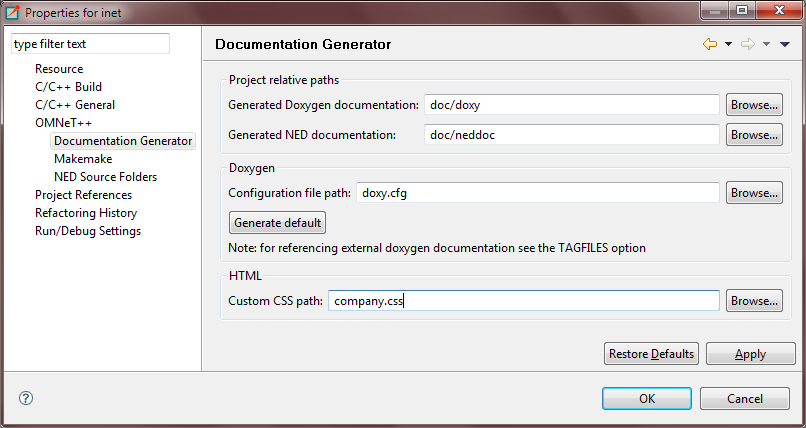
Fig. 169 Configuring project-specific settings
To generate NED documentation, you need to select one or more projects. Then, either go to the main Project menu or to the project context menu and select the Generate NED Documentation menu item. This will bring up the configuration dialog where you can set various settings for the current generation before starting it.
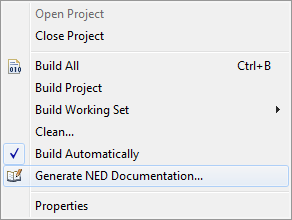
Fig. 170 Opening the NED documentation generator
The IDE can generate documentation for multiple projects at the same time. Other options control the content of the documentation, including what kind of diagrams will be generated and whether NED sources should be included. You can enable doxygen to generate C++ documentation that will be cross-linked from the NED documentation. The tool can generate the output into each project as configured in the project-specific settings, or into a separate directory. The latter is useful for exporting standalone documentation for several complex projects at once.
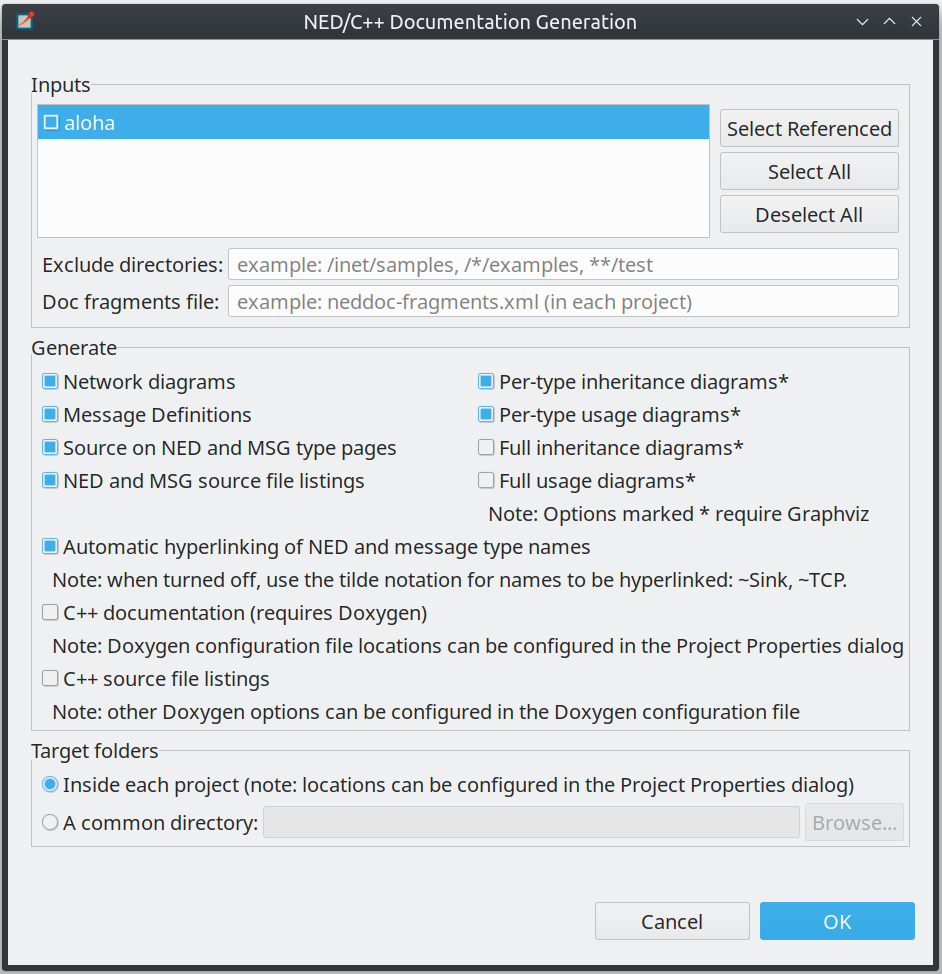
Fig. 171 Configuring the NED documentation generator
The NED generation process might take a while for big projects, so please be patient. For example, building the complete documentation for the INET project, including the C++ doxygen documentation, takes a few minutes. You can track the progress in the IDE’s progress monitor.
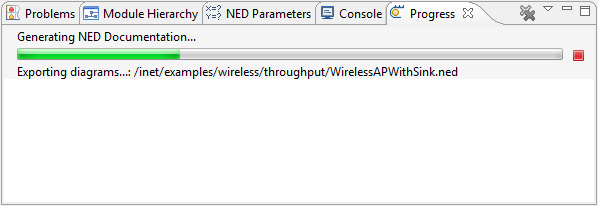
Fig. 172 Generating NED documentation in progress
The result is a number of cross-linked HTML pages that can be opened by double-clicking the generated index.html.
On the left side, you will see a navigation tree, while on the right side, there will be an overview of the project. If
you have not yet added a @titlepage directive to your NED comments, then the overview page will display default
content.
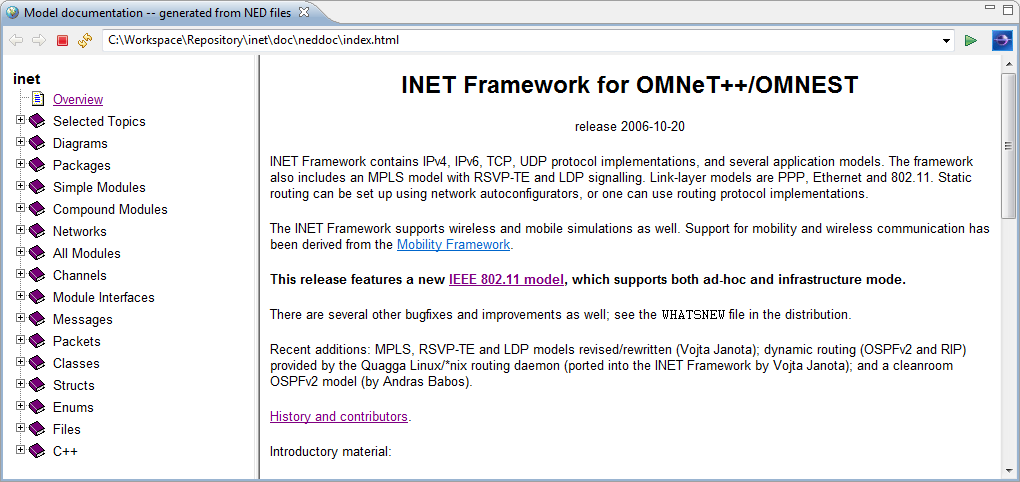
Fig. 173 The resulting NED documentation
The documentation contains various inheritance and usage diagrams that make it easier to understand complex models. The diagrams are also cross-linked, so when you click on a box, the corresponding model element’s documentation will be opened. The NED model elements are also exported graphically from the NED Editor. These static images provide cross-referencing navigation for submodules.

Fig. 174 NED usage diagram
There are also a number of tables that summarize various aspects of modules, networks, messages, packets, etc. The most interesting is the list of assignable parameters. It shows all parameters from all submodules down the hierarchy that do not have fixed values. These can be set either through inheritance, encapsulation, or from the INI file as experiments.
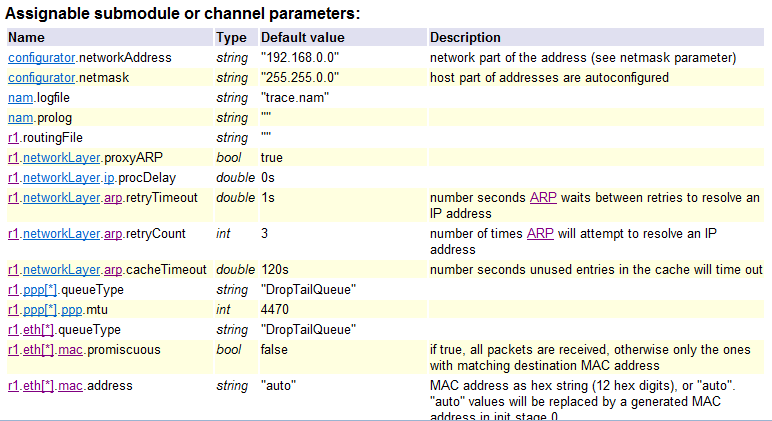
Fig. 175 NED assignable parameters
There are other tables that list parameters, properties, gates, using modules or networks, and various other data along with the corresponding descriptions. In general, all text might contain cross-links to other modules, messages, classes, etc. to make navigation easier.